Advantage+ 8 min read
Disable Advantage+ on Meta: Creative, Audience, Placements
Turn off Advantage+ on Meta Ads: creative enhancements (one ad or in bulk), Advantage+ audience and placements, with the exact Ads Manager steps.

Contents
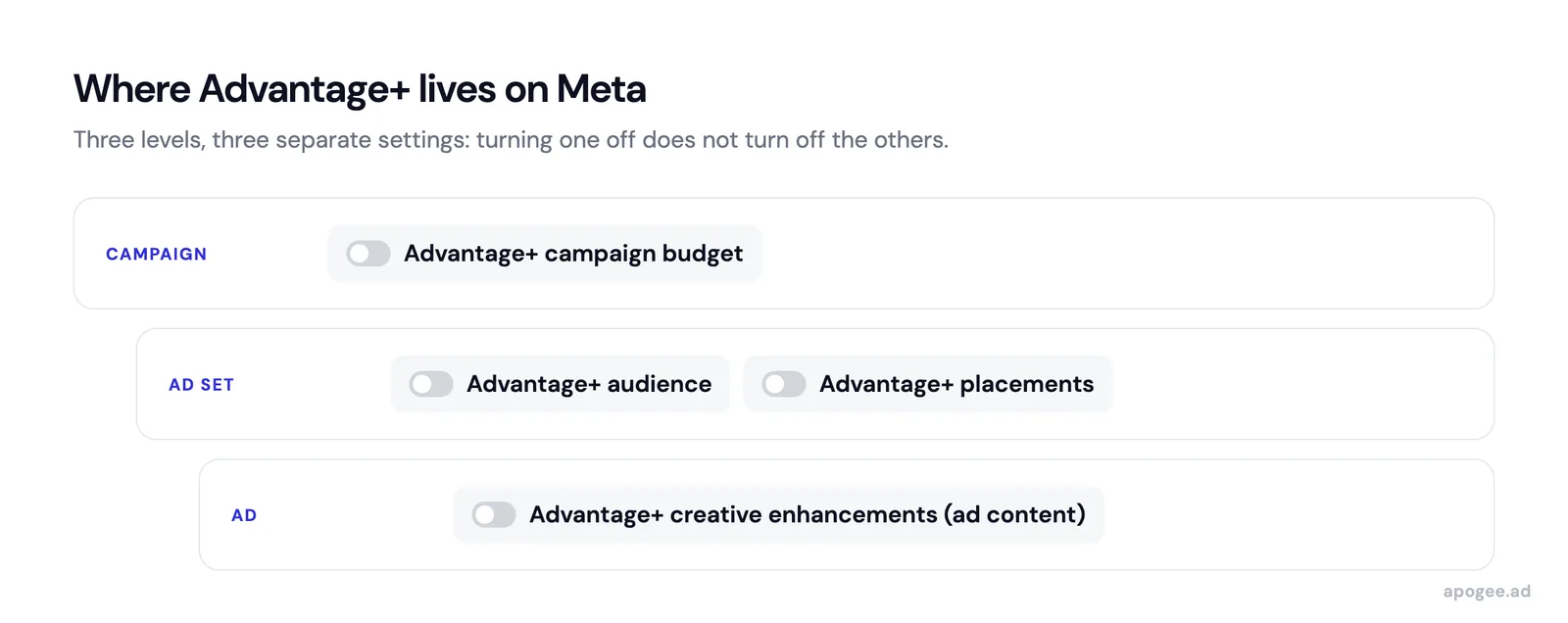
Advantage+ is not a single switch. It is the name Meta gives to several automations, and each one is turned off in a different place: creative enhancements in the ad, audience and placements in the ad set, budget in the campaign. For creative enhancements, Meta also offers a bulk edit on ads that already exist, as long as they share the same ad format. The exact steps are below, with the labels Meta uses in Ads Manager.
What is Advantage+ on Meta Ads?
You approved a clean 4:5 video, and what actually runs in the feed is a re-cropped version with brightened colors and a text overlay you never wrote. That is Advantage+ creative at work: Meta adapts the creative at delivery. Meta’s help center says it plainly: enhancements try to maintain the core message of your campaign, but the media and text you upload may be adjusted.
Advantage+ creative is only one building block. Meta groups its Advantage+ automations into several families: audience, placements, campaign budget, creative (catalog ads included) and destination. In practice, Meta can modify your creatives (cropping, brightness, text overlays), expand your audience beyond your selections, and deliver on placements you did not choose. Meta presents these features as optimizations. For an advertiser testing creatives, they mostly reduce control over what is actually delivered.
Which Advantage+ building block do you want to turn off?
| Advantage+ building block | Level | What turns it off, according to Meta’s help center |
|---|---|---|
| Advantage+ creative enhancements | Ad | Unchecking them in Enhancements, and in Advanced preview for some |
| Advantage+ audience | Ad set | Further limit your audience, with the Use as a suggestion boxes unchecked |
| Advantage+ placements | Ad set | Excluding at least one placement, or opting out of Mobile or Desktop devices |
| Advantage+ campaign budget | Campaign | Several ad sets without campaign budget |
Meta also notes that raising the minimum age up to 25 or excluding a custom audience keeps the audience on Advantage+. In other words, those two settings are not enough to turn it off.
Why is Advantage+ being on by default a problem?
The real problem is that these settings start on and that they are scattered. For most campaigns, Meta now starts in the recommended setup, also called Advantage+ campaign setup. On the creative side, Meta’s help center states that some enhancements are on by default, and that some can only be turned off in Advanced preview, without appearing in the Ad creative section.
So there are different settings to uncheck at campaign, ad set and ad level. Miss one, and the creative being delivered is no longer the one you approved. When you launch dozens of ads a week, checking each one by hand eventually lets one through. The result: your creative tests measure creatives modified by Meta, and your reporting reflects versions you never approved.
Turning off Advantage+ does not happen in one place: the settings are spread across campaign, ad set and ad level, and a single missed setting is enough for Meta to modify the creative being delivered.
How do you disable Advantage+ in Ads Manager?
There are three cases: an ad you are creating, an ad already published, and several existing ads to fix at once. The labels below are those of Meta’s help center. The same procedure is available as a PDF guide to download, with the checklist of enhancements to check.
While creating an ad
- In Meta Ads Manager, click + Create and complete the steps until you reach Ad setup.
- Choose Create ad, then Single image or video or Carousel as the format. The available enhancements depend on the format.
- In Ad creative, click Set up creative and continue until you reach Enhancements.
- Turn off the enhancements one by one, then click Done.
- In Ad preview, click Expand to open Advanced preview, then the Advantage+ creative tab: this is where you turn off the enhancements that did not appear in the previous step. Click Save.
On an ad already published
- Open the Ads tab, check the box next to the ad and click Edit.
- In the Advantage+ creative section, Meta shows how many enhancements are on. Click Edit and turn them off.
- Check Advanced preview as well, then click Save and Publish.
On several ads in bulk
Meta documents a bulk edit for Advantage+ creative enhancements (Meta help: Bulk edit Advantage+ creative enhancements in Meta Ads Manager):
- Open the Ads tab and check the ads you want to edit.
- Click the menu button next to Edit, then select Advantage+ creative. A screen shows which enhancements are on for each selected ad.
- In Edit all selected ads, click Edit, unselect the enhancements you want to turn off, then click Save to draft or Publish.
The condition to know: every ad you select must have the same ad format. A batch that mixes images, videos and carousels needs one edit per format.
Meta’s interface changes often, and the exact location of these settings can vary by account and by version of Ads Manager. The steps above follow Meta’s help center as read on October 6, 2026 (turn off Advantage+ creative enhancements, what turns Advantage+ on and off).
A bulk edit fixes existing ads, not the next ones: every new ad starts with its own settings, and the enhancements on by default have to be checked before each launch.
Turning off Advantage+ audience and placements
Both settings live in the ad set, not in the ad.
Advantage+ audience is applied automatically when it is available, according to Meta’s help center. To turn it off, select Further limit your audience (or Further limit the reach of your ads), make your selections, and uncheck the Use as a suggestion boxes. Watch your duplicates: a campaign without Advantage+ audience, duplicated with the recommended setup, gets it applied automatically.
For placements, exclude at least one placement in the ad set: you switch to manual placements, and the section shows Advantage+ off.
For a launch at volume, Apogee’s bulk configuration offers Advantage+ placements or manual exclusion per platform at ad set level, and that choice applies to the whole batch.
What does disabling Advantage+ not solve?
Disabling Advantage+ gives you back control over delivery, not performance. If a creative is weak, serving it exactly as designed will not make it convert: you are protecting the integrity of your tests, not guaranteeing their outcome. There is also a case where keeping an enhancement on is a reasonable choice: if you run a single creative and no one produces variations, Meta’s automatic adjustments are the only iteration you will get. The point of disabling is to keep your data clean when you produce and test your own variations.
It also does not replace creatives built for each placement. Supplying the right ratio (square, vertical, story) keeps Meta from cropping for you: that is the subject of our article on Meta Ads multiformat creatives.
Finally, turning off Advantage+ audience is not always the right call. Meta recommends A/B testing Advantage+ audience for almost all campaign types, except retargeting. The position defended here is about creative enhancements during a test: that is where automatic modification distorts results the most.
Can Advantage+ be disabled automatically?
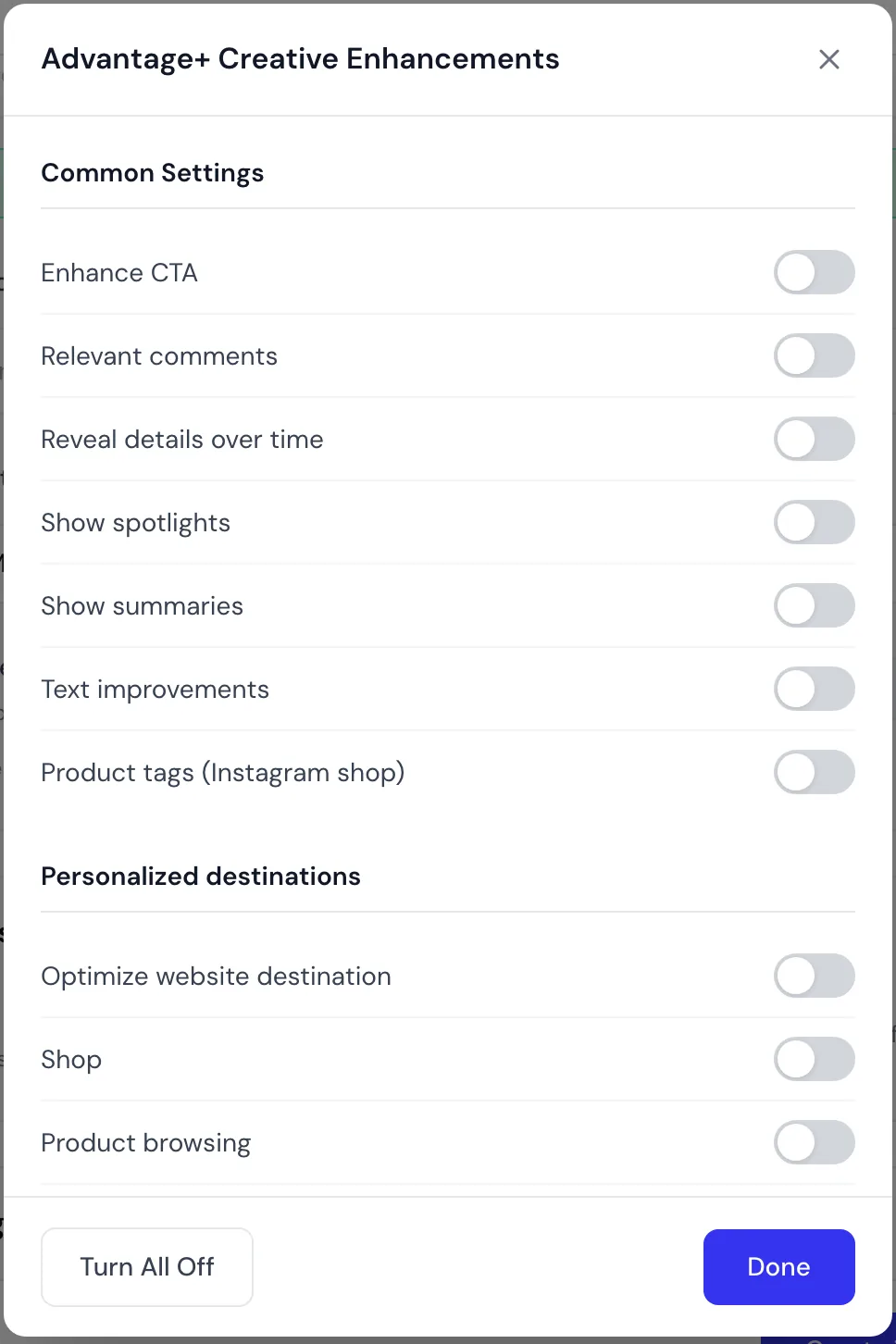
In Ads Manager, a bulk edit fixes existing ads, once they are created and sorted by format. Apogee handles it at creation: its Advantage+ controls expose eleven Advantage+ creative enhancements, all off by default, with a single button that turns them all off if you switched any back on.
| Scope | Enhancements exposed by Apogee |
|---|---|
| Every medium | Enhance CTA, relevant comments, reveal details over time, show spotlights, show summaries, text improvements |
| Images only | Adjust brightness and contrast, add overlays, visual touch-ups |
| Videos only | Auto crop, video filtering |
This setting is part of the configuration propagated to the whole batch during a bulk upload: you set it once, and it applies to every ad launched. An ad template can also save your Advantage+ settings for later launches.
The limits, to be complete. These toggles cover creative enhancements only: Advantage+ audience and budget are set at campaign and ad set level, outside these controls. And the Advantage+ controls are included on the Pro and Scale plans, not on Starter.
Apogee also launches your creatives on TikTok Ads and Snapchat Ads with the same workflow, but Advantage+ is a Meta-only setting.
Try Apogee for 7 days for €1, with no ad limit.
Related articles: