Bulk upload 14 min read
Meta Ads bulk upload: launch hundreds of ads in one pass
How to bulk upload Facebook and Meta ads: Ads Manager's Excel import vs an ads uploader, the six steps, file limits, Advantage+ and where it goes wrong.

Contents
- What is Meta Ads bulk upload?
- Can you bulk upload in Ads Manager without a tool?
- Bulk upload or bulk launch: what is the difference?
- Why is uploading one by one so slow?
- How do you bulk upload Meta Ads?
- What formats does Apogee support?
- How does Apogee automatically detect formats?
- Is bulk upload always better than the manual workflow?
- Does bulk upload work on TikTok Ads and Snapchat Ads?
- Frequently asked questions about Meta Ads bulk upload
Meta Ads bulk upload means publishing a batch of creatives as Facebook and Instagram ads in one operation, instead of building each one in Ads Manager. There are three ways to do it: Ads Manager’s Excel import, which is free but works from a spreadsheet rather than from your files; scripts on Meta’s Marketing API, which need a developer; and a dedicated ads uploader such as Apogee, which reads a folder of files and creates the campaign, ad sets and ads. Publishing one creative by hand takes about ten clicks, so two hundred take about two thousand. This guide covers the native option, the steps with a tool, the file limits, Advantage+, and the cases where bulk upload is the wrong choice. Apogee runs the same workflow on TikTok Ads and Snapchat Ads.
What is Meta Ads bulk upload?
Meta Ads bulk upload is a way to import dozens, or hundreds, of ad creatives into your Meta Ads account in one operation, instead of creating the ads one by one in Ads Manager. Rather than repeating the same steps for each visual (selecting the file, choosing the placement, naming the ad, configuring the ad set), you import the whole batch once. The tool then assigns the files to campaigns, builds the ad sets and applies your settings.
In practice, bulk upload turns a sequential task into a single configuration replicated across the batch. In Apogee, setting up a launch takes 47 seconds, whether the batch holds 1 creative or 300; the time to transfer the files comes on top. That change of scale is what makes it realistic to test enough creative volume to find winners.
There are three approaches: the Excel import in Ads Manager (free, but it starts from a spreadsheet, not from your files), scripts on Meta’s Marketing API (they need a developer), and dedicated tools, often called ads uploaders, such as Apogee or Blip, which automate the process without code.
Can you bulk upload in Ads Manager without a tool?
Yes, in part. Ads Manager has an import and export feature that works with Excel files: you export a template or existing campaigns, fill in or edit one row per campaign, ad set or ad, then import the file back. It is free, and it is good at creating structure at scale or editing many ads at once. What it can and cannot edit in bulk is detailed in Ads Manager bulk edit limits.
Its limit is the input. The Excel import takes a spreadsheet, not a folder of creative files: the media must already be in the ad account, which means someone uploaded every video and image first. Names are typed into cells, so the naming convention holds only as well as the person filling them in.
Scripts on the Marketing API remove the spreadsheet but add three technical constraints: the creation order the API imposes (media, then creative, then ad), asynchronous video processing, and rate limits per app and per ad account. An ads uploader exists to absorb those constraints for you. If you prefer to own the pipeline, the n8n bulk upload workflow shows what a script-based setup involves.
| Method | What you feed it | Cost | Main limit |
|---|---|---|---|
| Ads Manager Excel import | A spreadsheet, one row per object | Free | Media must already be in the account; names typed by hand |
| Marketing API script | Code you write and maintain | Free, plus developer time | Creation order, video processing and rate limits to handle |
| Ads uploader (Apogee) | A folder of creative files | From €69 per seat per month | A paid tool with delegated access to your ad account |
Bulk upload or bulk launch: what is the difference?
The two terms are often used as synonyms. Strictly speaking, bulk upload is sending many media files to the ad account; bulk launch is creating and publishing the campaigns, ad sets and ads that use those files.
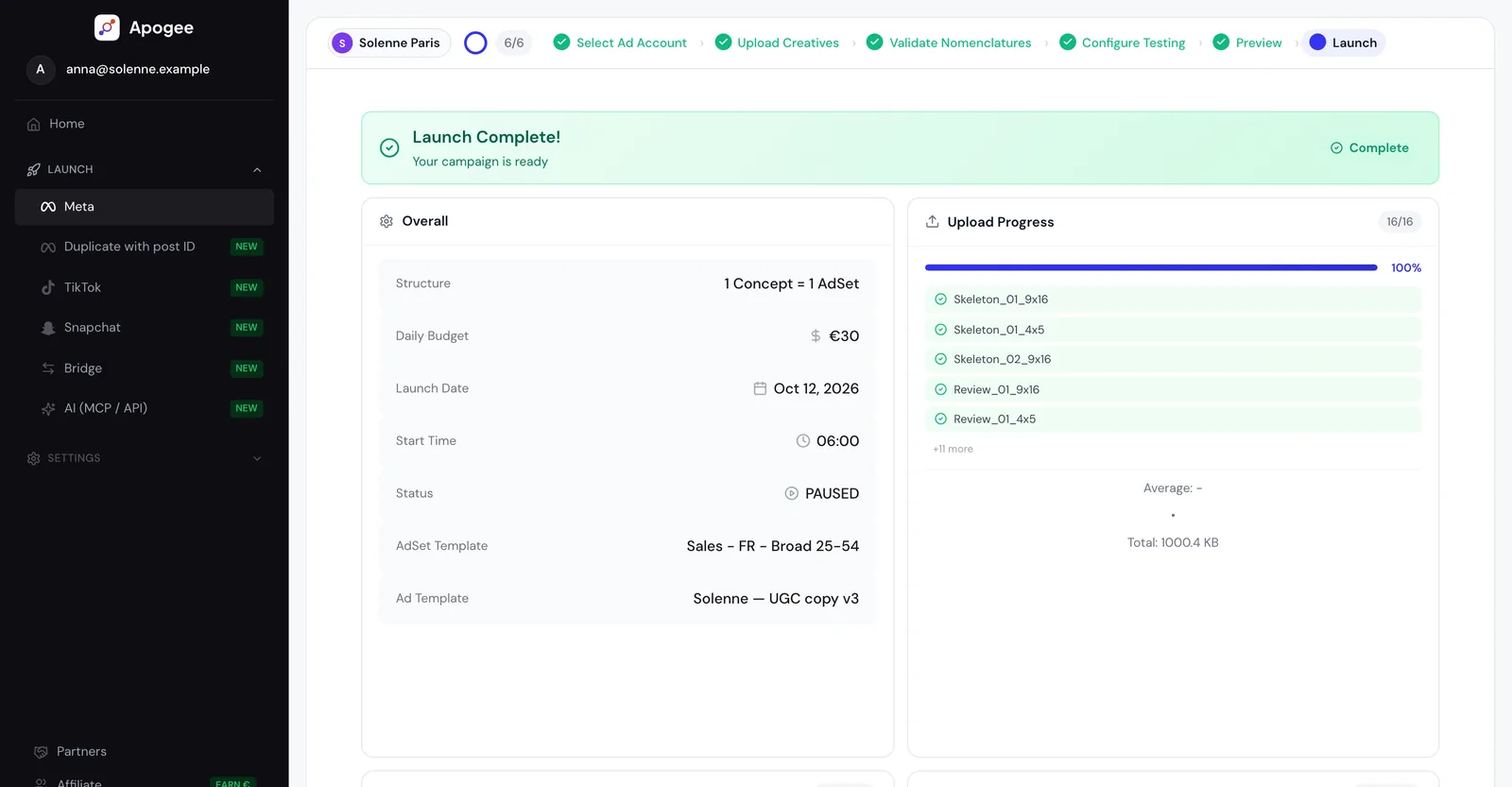
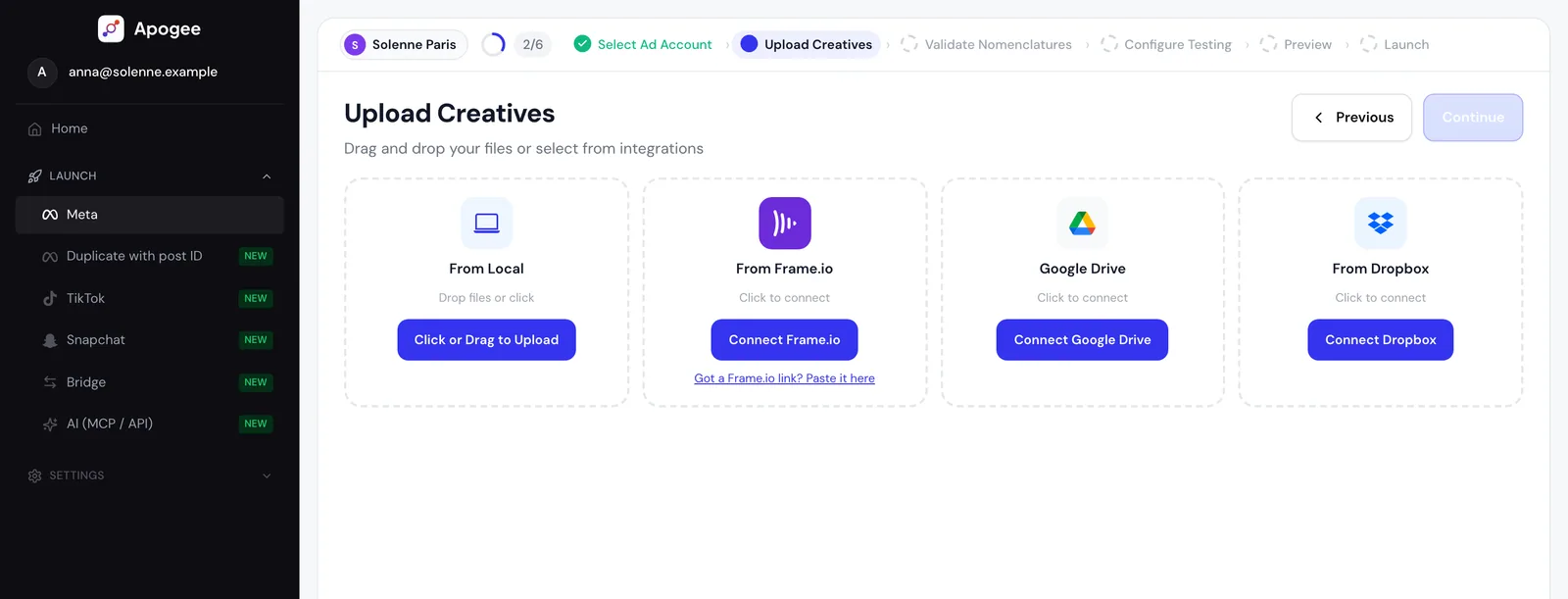
Ads Manager’s Excel import only covers the launch, from media already in the account. An ads uploader does both in one pass. In Apogee, a launch runs in four phases with a live activity log: uploading media, creating ad sets, creating ads, finalizing. The ads can go live immediately, be created paused, or be scheduled, live or paused, in the ad account’s timezone.
Why is uploading one by one so slow?
Ads Manager was not designed for creative volume. The interface imposes a sequence: select a file, wait for the upload, name the ad, set the placement, check the settings, move on to the next one. At about ten clicks per creative, a batch of 100 means roughly a thousand clicks, before counting mistakes. Before every launch, the 23-point Meta Ads launch checklist lists what to check, with or without a tool.
The most common errors in a manual workflow are:
- Mapping errors: a 9:16 creative assigned to a feed placement instead of stories, which degrades delivery and wastes budget.
- Inconsistent naming: each launch is named differently, which makes reporting by concept or iteration impossible to automate.
- Advantage+ on by default: according to Meta, Advantage+ creative enhancements are on by default for every new ad. Left on, Meta can crop your visuals, adjust brightness and add overlays, so your creative test no longer measures what you produced. Ads Manager can bulk edit them on existing ads of the same format: one more step to remember after every manual launch.
- Fatigue: the longer a repetitive upload session runs, the easier it is to skip a setting. A senior media buyer is better used elsewhere.
The cost of the manual workflow is not only the hours. Every hour spent uploading is an hour not spent reading performance, iterating on winning concepts or building creative strategy. Multiply the time one launch takes you by the number of ad accounts you manage: for an agency, that is where the case for a tool usually appears.
Ads Manager can switch Advantage+ enhancements off in bulk, but only on existing ads of the same format: one more step after every manual launch.
How do you bulk upload Meta Ads?
With Apogee, bulk upload follows six steps, the same on Meta Ads, TikTok Ads and Snapchat Ads.
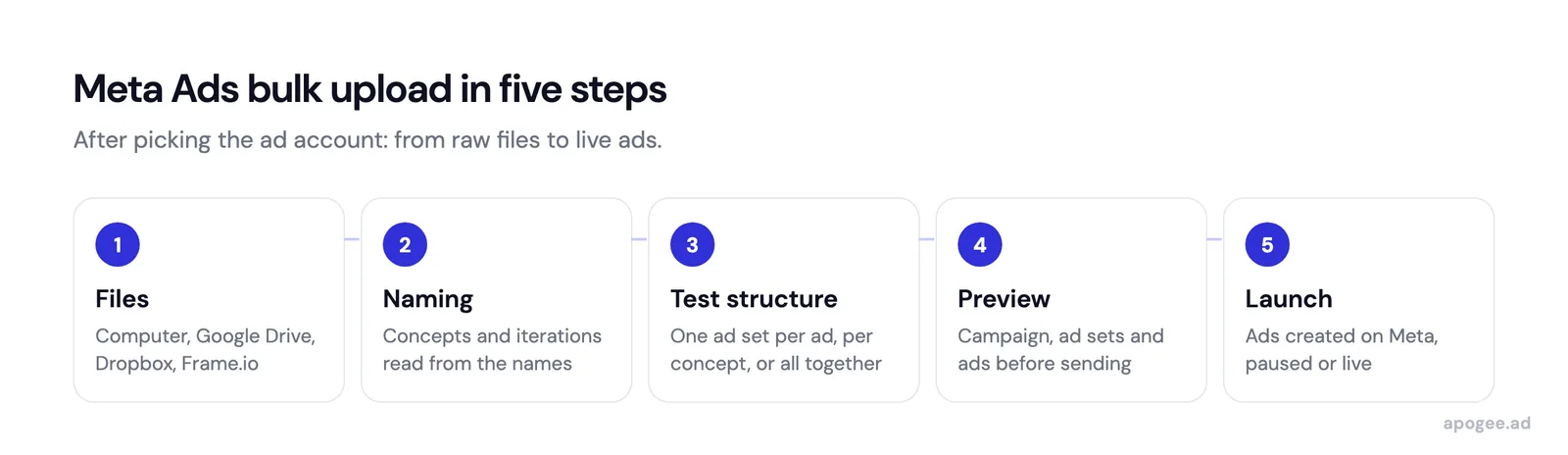
Step 1: choose the ad account. The account connects through Meta’s official login (OAuth): you enter your password on Facebook, not on Apogee.
Step 2: import your creatives. Drag and drop from your computer, or browse Frame.io, Google Drive or Dropbox without downloading and re-uploading. Apogee accepts MP4, MOV and AVI videos, JPG, PNG, GIF and WEBP images, up to 500 MB per file. Uploads are resumable, and each file shows a ratio badge (1:1, 9:16, 16:9, 4:5).
Step 3: validate the naming. Apogee reads your file names to extract concept, iteration and format. If your files are named ConceptA_V3_Story.mp4, it reads concept A, iteration 3, story format. A saved convention that matches 80% or more of the names is applied automatically, and the step stays locked until matching reaches 100%.
Step 4: configure the test. You pick one of four testing structures: one ad set one ad, one concept one ad set, all in one, or insert into an existing ad set. On the Pro and Scale plans, the eleven Advantage+ creative enhancements are off by default, and the Copywriting Agent can write primary texts, headlines and descriptions for each creative.
Step 5: preview. A structure tree shows exactly what will be created in Meta (campaign, ad sets, ads, formats), with names editable in place. A required-fields checker lists what still blocks the launch.
Step 6: launch. Apogee publishes through Meta’s official API. If part of the batch fails, the results banner groups identical errors, names the cause and explains the fix; Retry failed re-posts only the affected creatives.
Each step is detailed on the bulk upload page. File-name parsing is described on the AI naming page, the four structures on the testing structures page, and copy generation on the Copywriting Agent page.
The 47 seconds measure the setup of a launch, the same for 1 creative as for 300. File transfer comes on top, and the prerequisite does not change: file names that follow a regular convention.
What formats does Apogee support?
Apogee recognizes four aspect ratios for Meta creatives:
| Format | Ratio | Typical placements |
|---|---|---|
| Square | 1:1 | Facebook Feed, Instagram Feed |
| Vertical | 4:5 | Instagram Feed, Facebook mobile Feed |
| Story/Reel | 9:16 | Stories, Reels |
| Landscape | 16:9 | In-stream video |
Accepted file types:
- Videos: MP4, MOV and AVI, with WEBM and MKV also recognized on import
- Images: JPG, PNG, GIF and WEBP
- Size: up to 500 MB per file. A heavier file is listed in a rejection panel with its reason, never dropped silently.
File extensions and MIME types are repaired on import, which avoids a refusal from Meta on a format technicality. Versions of the same creative in several ratios are combined into a single Meta ad, so each placement serves the right format instead of an automatic crop. The video and image versions of the same concept go into two separate ads. Carousels are not among the formats listed for bulk upload.
How does Apogee automatically detect formats?
Apogee reads the format first from keywords in the file name: 9x16, vertical, story, 16x9, horizontal, 1x1, square or 4x5, including merged suffixes such as 1055v, read as concept 1055 in 9:16. When the name says nothing about the format, it falls back on the media’s actual dimensions.
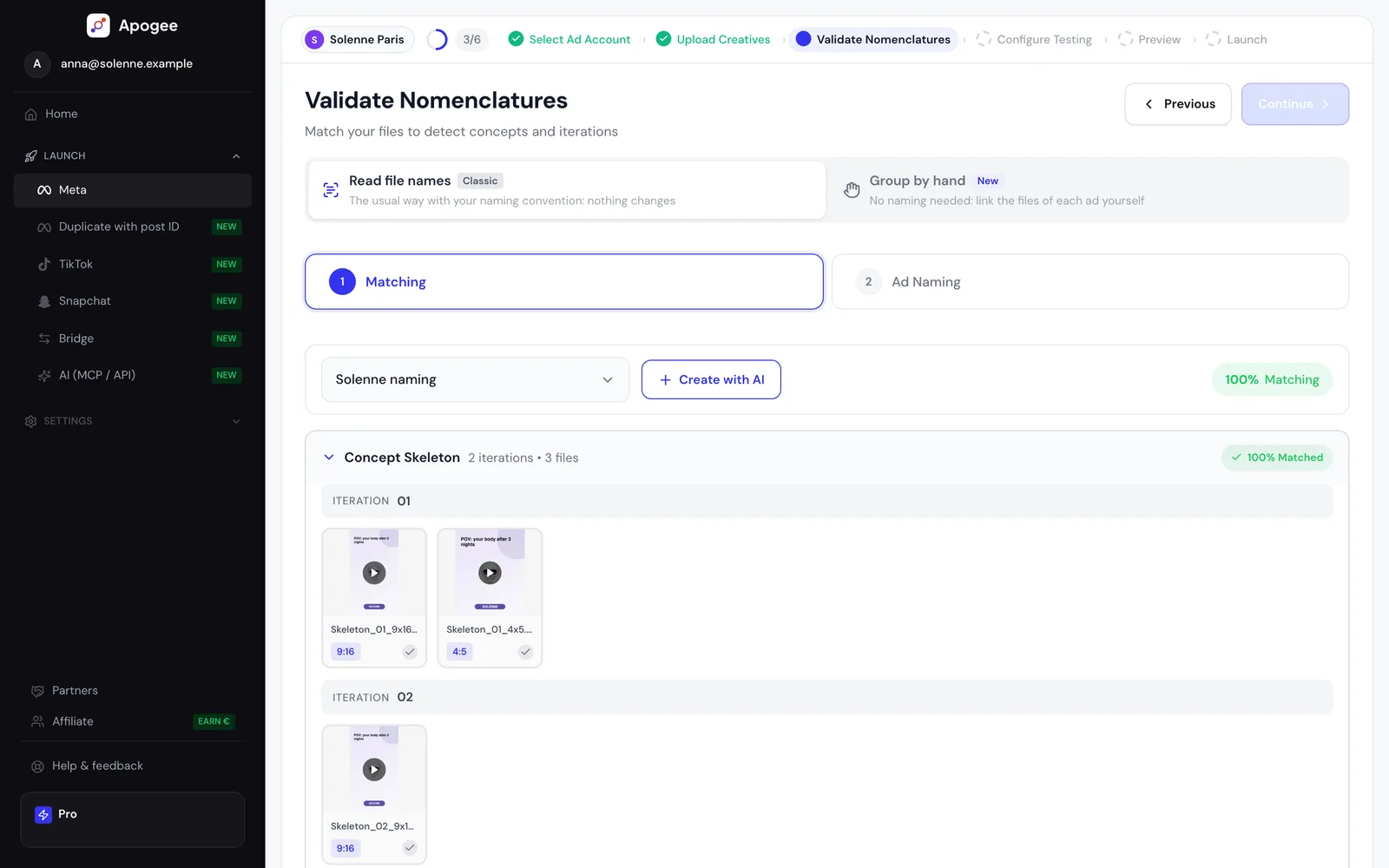
The same pass types every position of the name: concept ID, concept name, iteration (H1, V2, Hook1, A, B, v1), format and date. Dates are recognized then excluded, so a 03/03/26 is never read as concept 26. If the detection gets something wrong, you correct it in plain English and run it again.
Detection recognizes a regularity, it does not invent one. Files named final_v2_FINAL.mp4 carry no usable information, and no tool changes that.
Format comes from two signals. The keyword in the file name decides first; when the name is silent, Apogee reads the media’s actual dimensions. A consistent naming convention makes both reliable.
Is bulk upload always better than the manual workflow?
| Criteria | Manual workflow (Ads Manager) | Bulk upload (Apogee) |
|---|---|---|
| Effort for 100 creatives | About ten clicks per ad, roughly a thousand in all | One configuration; launch setup in 47 seconds, file transfer on top |
| Placement errors | Depend on who sorts the files | Ratio badge on each file; ratios of one creative grouped in one ad |
| Naming convention | Manual and inconsistent | Detected, then applied automatically |
| Advantage+ | Bulk edit after creation, in batches of same-format ads | Eleven enhancements off by default (Pro and Scale plans) |
| Campaign structure | Manual setup | Four structures to pick from |
| Copywriting | Written separately | Copywriting Agent (Pro and Scale plans) |
| Import sources | Your computer, or media already in the account | Computer, Google Drive, Frame.io, Dropbox |
| Software cost | Free, Ads Manager is included | €69 to €199 per seat, per month |
| Setup | None, the tool is already open | OAuth connection, then learning how the naming logic behaves |
| Review before delivery | Every ad passes under your eyes | The batch ships together, reviewed on one preview screen |
| Blast radius of a misconfiguration | Limited to the ad in front of you | Replicated across the whole batch |
| Ad account access | No third party | Delegated to Apogee via OAuth |
The table does not lean one way, and that is what makes the trade readable. On effort, naming and Advantage+, the gap is structural: those three are mechanical, and a machine holds them better than a tired human at the end of the day. On cost, setup and unit-level control, the manual workflow keeps the advantage.
The row that deserves the most attention is blast radius. Done by hand, a bad setting damages one ad; done in bulk, it replicates across a hundred. Speed amplifies whatever you hand it, accuracy and mistakes alike, which is why the preview before launch is not a formality.
Bulk upload also leaves some things untouched. It does not make your creatives or judge their quality. It does not fix an inconsistent naming convention. Meta’s rate limits still apply. And when Meta rejects an ad, the fix stays on your side: Apogee names the cause, it does not correct it.
At volume the trade still resolves in favor of the tool. If a manual launch costs you two hours a week, that is about eight hours a month per ad account, multiplied by the number of accounts you run. Below roughly ten ads a month, the question does not arise: the time saved does not cover the subscription.
Does bulk upload work on TikTok Ads and Snapchat Ads?
Yes. Apogee runs bulk upload on Meta Ads, TikTok Ads and Snapchat Ads with the same six steps, from one Apogee account with three OAuth connections. Naming detection and the four testing structures work the same way; only the vocabulary changes: ad set on Meta, ad group on TikTok, ad squad on Snapchat.
A few differences matter before you launch:
- On TikTok Ads and Snapchat Ads, Apogee takes vertical 9:16 videos only, in MP4, MOV or AVI. An image does not become a TikTok ad.
- Only the Sales objective is available on those two platforms.
- TikTok accepts at most 50 ads per ad group; Snapchat announces no limit per ad squad.
- A launch targets one platform. With several creatives, run one bulk upload per platform; for an ad that is already live, the Bridge moves it to the other platforms.
Details are on the TikTok Ads bulk upload, Snapchat Ads bulk upload and Meta, TikTok and Snapchat pages. To compare Apogee with other bulk upload tools, read the Ads Uploader comparison, the AdManage comparison or the roundup of Meta ads uploaders.
Frequently asked questions about Meta Ads bulk upload
How does Apogee connect to my Meta ad account? Through Meta’s official login (OAuth): you enter your password on Facebook, not on Apogee. Files used in a launch are deleted from Apogee’s storage about 24 hours afterwards, and you can disconnect your Meta account at any time from settings.
Can I schedule a bulk launch? Yes. At launch, Apogee offers four statuses: live now, created paused, scheduled and live, scheduled and paused. Scheduling uses the ad account timezone read from Meta, not your browser’s.
Does Apogee turn off Advantage+ on every ad? On the Pro and Scale plans, yes by default: Apogee exposes eleven Advantage+ creative enhancements one by one, all off at every launch, with one button to turn them all off if you switched some back on. The Starter plan does not include these controls.
What are the pricing plans? Three plans, billed per seat, per month: Starter at €69 (unlimited bulk upload, naming, structure, 3 Autopilot prompts), Pro at €99 (everything in Starter plus the Copywriting Agent and 10 Autopilot prompts), Scale at €199 (everything in Pro plus 200 Autopilot prompts and an account manager). 25% discount on annual plans. Each plan can be tried for 7 days for €1, with no ad limit: unless you cancel before day 7, the plan is then charged.
Can I import from Google Drive or Dropbox? Yes. Apogee connects to Google Drive through its official picker (My Drive, Shared with me, Shared Drives), and to Frame.io and Dropbox. A folder URL resolves into all its media, and heavy videos are transferred server-side.
Bulk upload pays off once your volume makes ad-by-ad creation the bottleneck. Below that, Ads Manager is enough.
Try Apogee for 7 days for €1, with no ad limit, on Meta Ads, TikTok Ads and Snapchat Ads.
Related articles: