More articles 11 min read
Gemini CLI MCP: connect Apogee in two commands
Gemini CLI MCP setup: add Apogee with gemini mcp add and /mcp auth, then launch and run your Meta, TikTok and Snapchat ads from the terminal, after your yes.

Contents
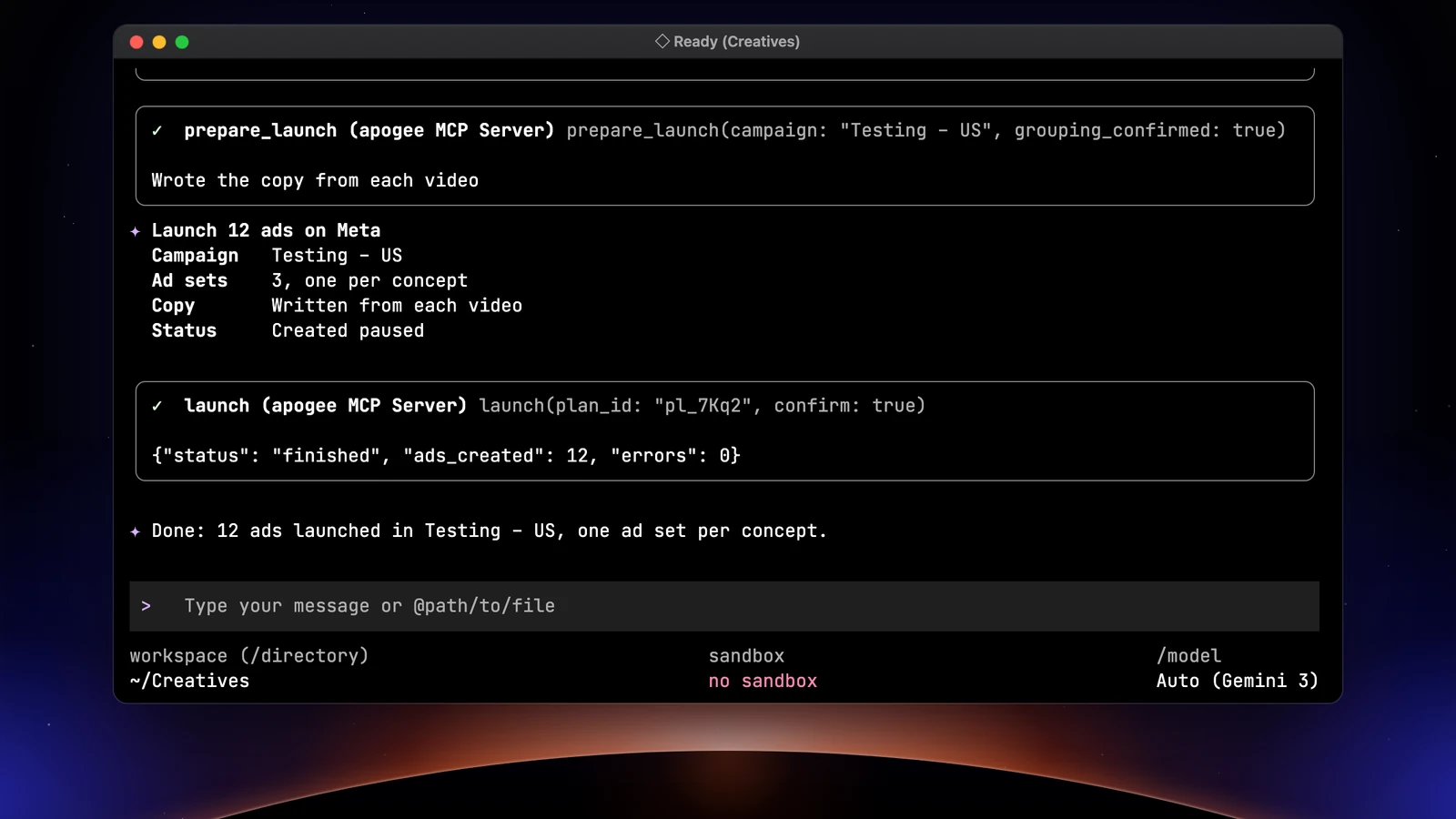
Gemini CLI MCP setup takes two commands with Apogee. gemini mcp add adds the server https://app.apogee.ad/mcp, then /mcp auth apogee signs you in to Apogee in your browser. From the terminal, Gemini CLI then reads your Meta, TikTok and Snapchat accounts, launches your creatives and prepares pauses and budgets, always after your yes. You need a plan that still includes Gemini CLI, and Apogee from the Pro plan.
Before you start: plans and sign-in mode
Check your Google plan first. On May 19, 2026, Google announced that Gemini CLI would stop serving Google AI Pro and Ultra subscribers and free users on June 18, 2026, in favor of Antigravity CLI (Google’s announcement).
| Your situation | What applies |
|---|---|
| Gemini Code Assist Standard or Enterprise license | Gemini CLI stays open: follow the steps below |
| Paid Gemini API key | Gemini CLI stays open: follow the steps below |
| Google AI Pro, Ultra or a free account | Moved to Antigravity CLI since June 18, 2026 |
| Apogee | Pro, Growth or Scale, MCP server included; 7-day trial for €1 |
We have not tested Apogee in Antigravity CLI yet, so this page does not describe it. The server URL stays the same. To see where Apogee stands among the other options, Meta’s official MCP included, read the Meta Ads MCP guide.
Two ways to sign in:
- OAuth, the default: you log in to Apogee in your browser and pick the access. It needs a browser on the same computer.
- An Apogee API key, for a machine without a browser (remote server, container).
Gemini CLI MCP: adding Apogee step by step
These steps follow Apogee’s connection guide and the Gemini CLI MCP documentation, read again on November 3, 2026.
-
In your terminal, add the server:
gemini mcp add --transport http apogee https://app.apogee.ad/mcp -
Open Gemini CLI and run
/mcp auth apogee. -
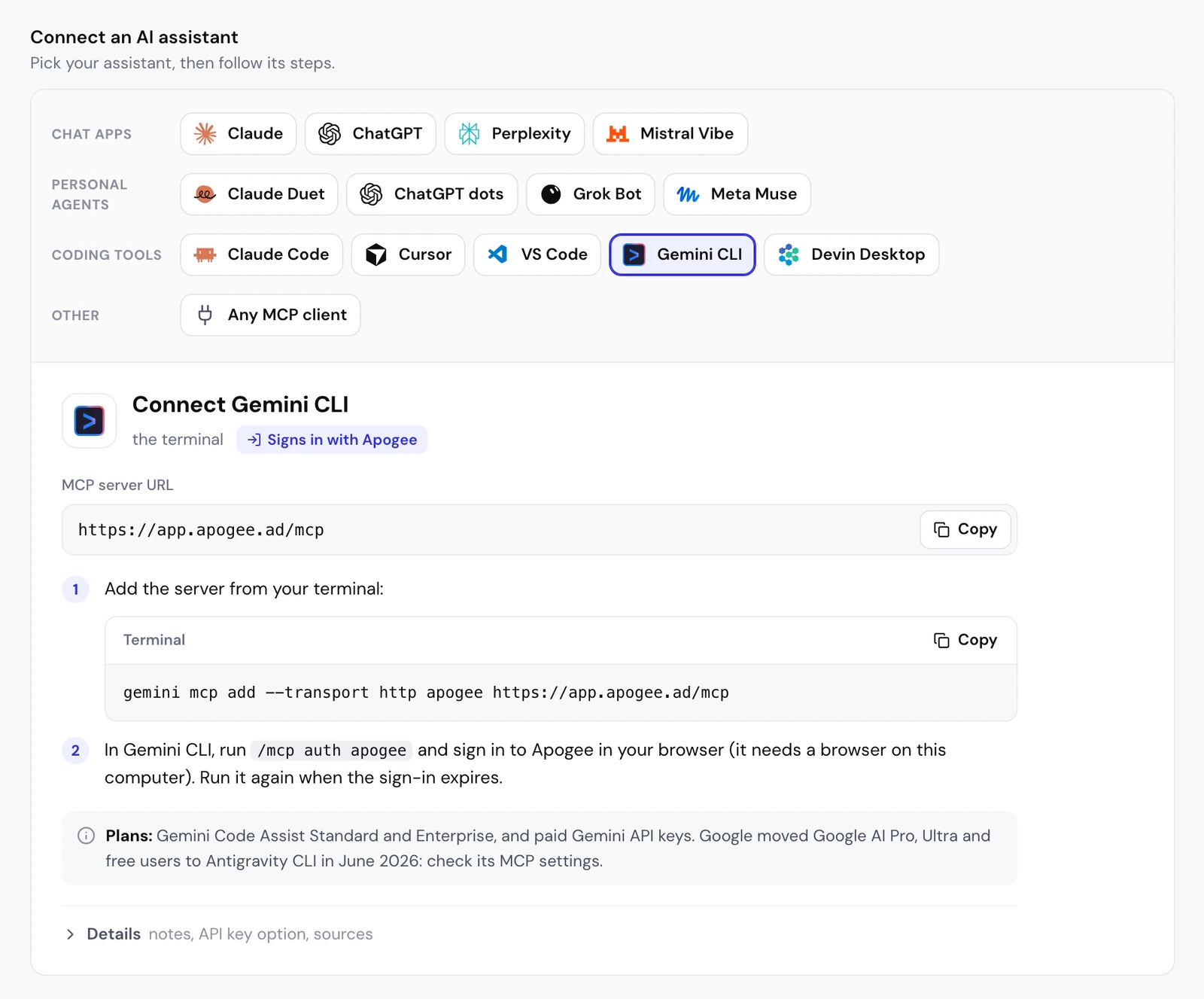
Your browser shows Apogee’s sign-in page: log in, pick the access, click Authorize.
-
Go back to Gemini CLI and ask your first question.
By default, the server is only added to the current project. Add --scope user to the command to have Apogee in every project, including the folder where your creatives land.
The access you grant
Gemini CLI runs on your computer and comes back to a localhost address after the sign-in. Apogee’s page therefore reads An app on this computer wants to access your Apogee account and shows the declared name, “Gemini CLI”. Only authorize it if you just ran /mcp auth apogee yourself; otherwise click Cancel.
| Access | What it allows | For which task |
|---|---|---|
| Read | Read accounts, campaigns, ads and statistics | Review, report |
| Launch | Import creatives, prepare and launch ads | Launches, Bridge |
| Manage | Pauses, budgets, targeting, duplicates | Cutting an ad, adjusting a budget |
Read-only use only needs Read. Untick whatever Gemini CLI does not need.
Without a browser: the API key
-
In Apogee, open Settings → API and click Create an API key.
-
Give it a Name (for instance “Gemini CLI”), tick only the Scopes it needs and pick Expires: 30 days, 90 days by default, 1 year or a date.
-
Click Create key, copy the key right away (Apogee shows it only once), then I saved it.
-
Add the server with the key:
gemini mcp add --transport http \
  --header "Authorization: Bearer apk_…" apogee https://app.apogee.ad/mcp
Replace apk_… with your key. On a key, the Manage access is called Actions.
Check the connection
In Gemini CLI, /mcp shows the status of each server: Apogee should be CONNECTED, with its tools. From your shell, gemini mcp list gives the same information. Then the first request, read-only:
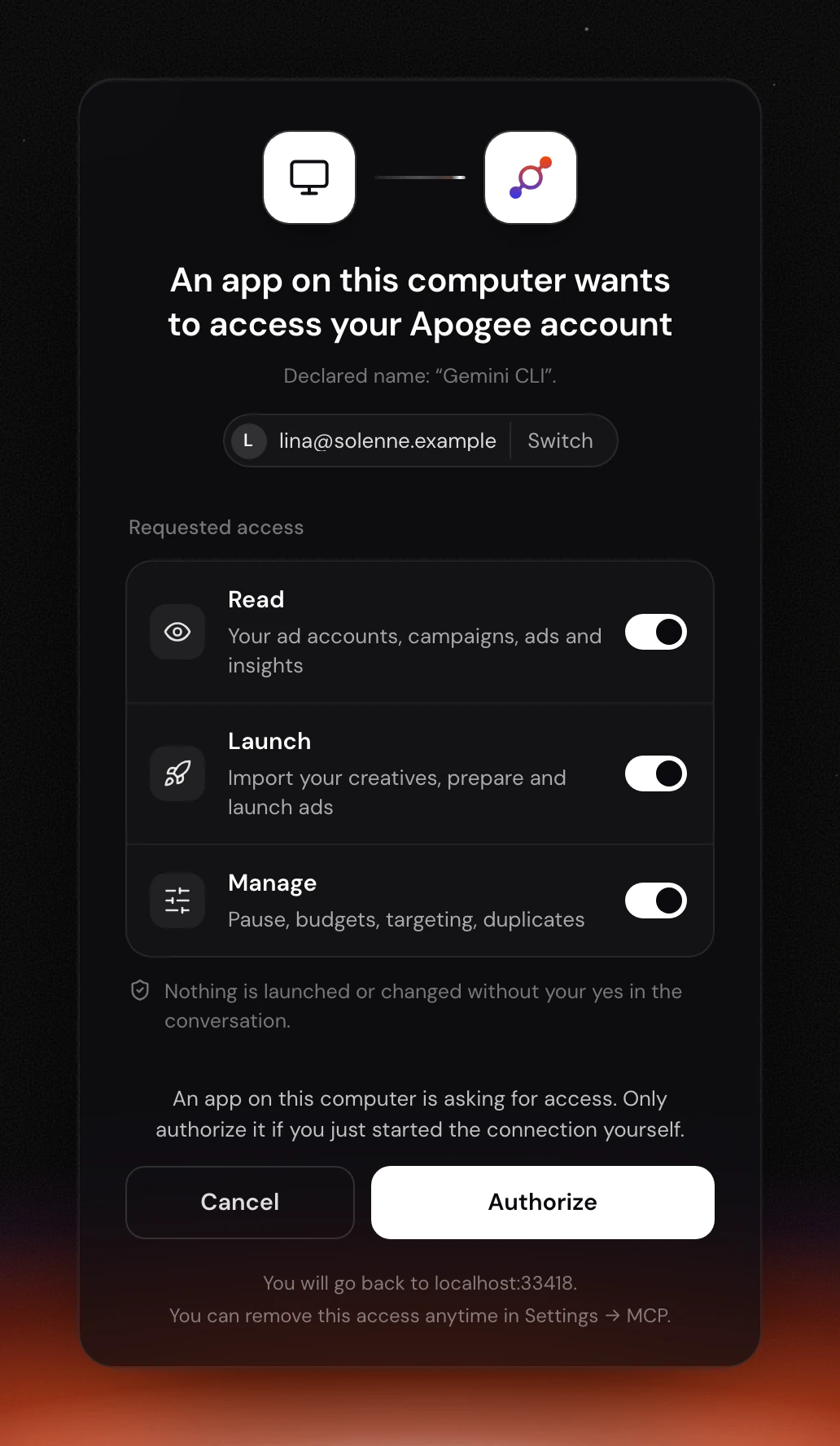
Gemini CLI calls whoami, then list_ad_accounts. On Apogee’s side, Settings → MCP lists Gemini CLI under Connected assistants, with its access, its connection date and when it was last used.
Gemini CLI on Meta Ads: launch a folder of creatives
This is what a terminal tool does better than a chat: send the creatives in a folder on your computer, without going through Drive.
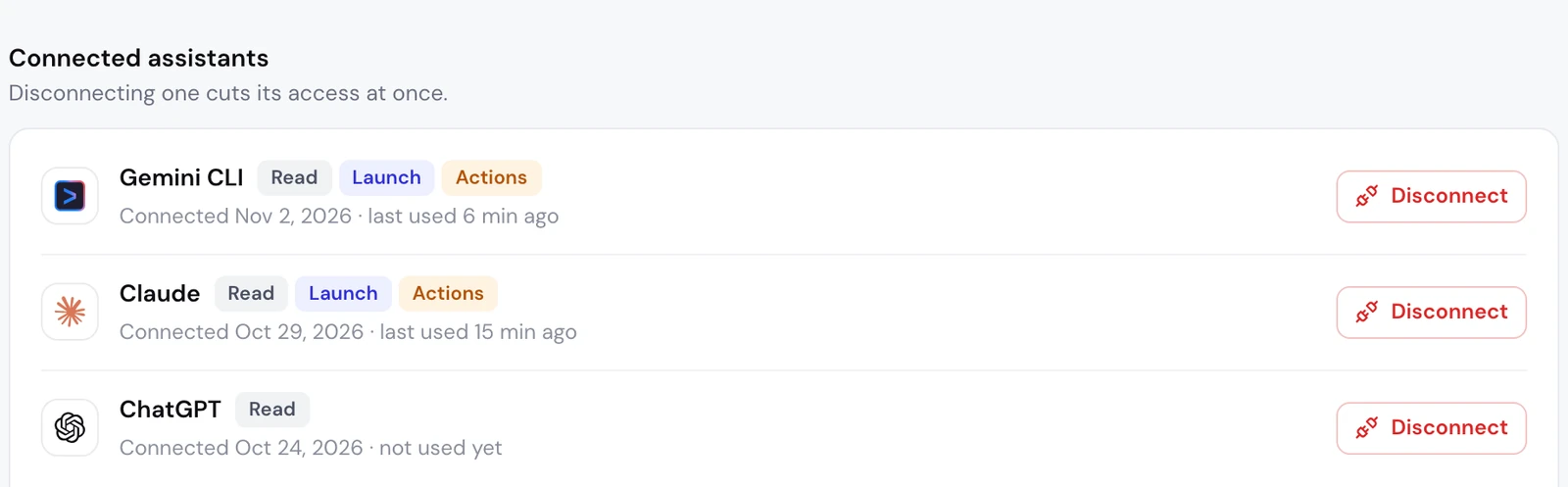
What Gemini CLI does, with Apogee’s tools:
- The account:
list_ad_accounts, and it asks which one when there are several. - The files:
get_upload_urlsgives one upload link per file (50 files per call, 500 MB at most each), Gemini CLI uploads each file, thenconfirm_uploadschecks it arrived. Nothing is on Meta at this stage. - The settings:
get_latest_in_campaignpicks up the latest ad set and ad of the campaign. - The interview:
get_launch_questionsreturns the Apogee app’s questions, in its order, with a recommended answer. Gemini CLI asks them one topic at a time and never answers for you. - Ads and texts: one creative in 9:16, 4:5 and 1:1 makes a single ad; one primary text, one headline and one description per ad, in the market’s language, for you to validate.
- The recap, then the launch:
prepare_launchcreates nothing. After your yes,launch, thenlaunch_statusuntil it is done.
In the recap, check the ads and their files, the new ad set’s name and settings, the texts, the Advantage+ enhancements (the ones you did not pick stay off) and the defaults applied. Want to change a detail? Say so, and Gemini CLI prepares a new recap.
File names that mean nothing
IMG_4512.mp4, final_v3_OK(1).mov: Apogee then groups the files by hand, like the app’s Group by hand. The formats of one creative are linked when their names differ only by the format, every other file becomes its own ad, and two files of the same length in different formats are put to you before they are linked.
No file is renamed on your disk: you rename the ads in the conversation.
Gemini CLI on TikTok Ads and Snapchat Ads
Send Meta winners over with the Bridge
Apogee’s Bridge relaunches a Meta ad on TikTok or Snapchat, paused, with texts adapted to the platform, without touching the original ad:
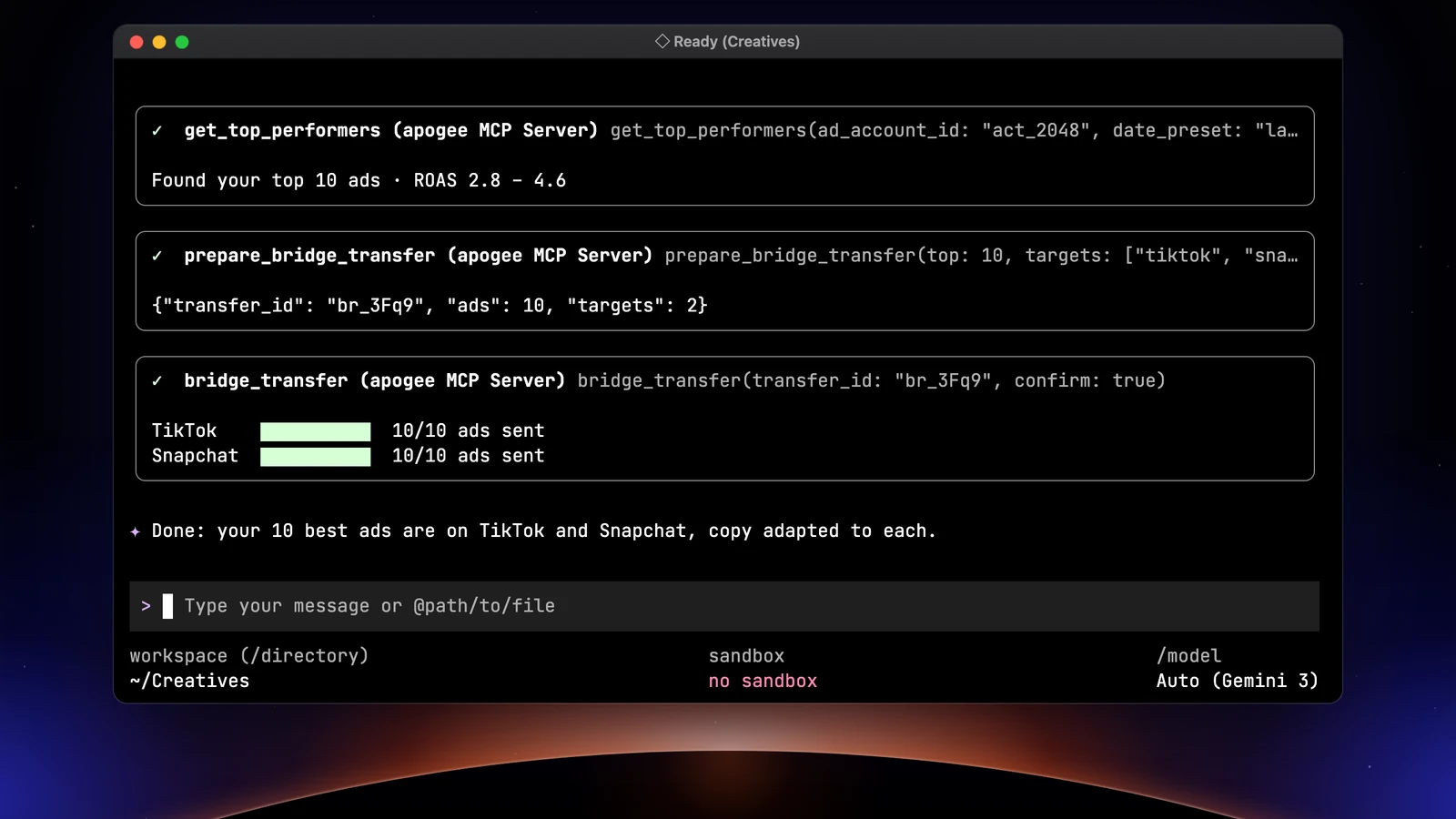
In the terminal, you see every call: get_top_performers for the ranking, list_bridge_transfers to skip what already went over, prepare_bridge_transfer for the recap, bridge_transfer after your yes. On the first transfer, Gemini CLI asks for the TikTok identity and the call to action, which Meta does not provide. Only videos make the trip.
Launch straight on TikTok and Snapchat
The flow is the Meta one, with the TikTok or Snapchat account named in the request. TikTok creates an ad group, where an image becomes a carousel; Snapchat creates an ad squad. With a template saved in the app:
Each platform gets its own recap and waits for its own yes. What each platform accepts is on the Meta, TikTok and Snapchat in Apogee page.
The morning brief and the Monday review in the terminal
Gemini CLI only works when you open it. In the morning, one request is enough:
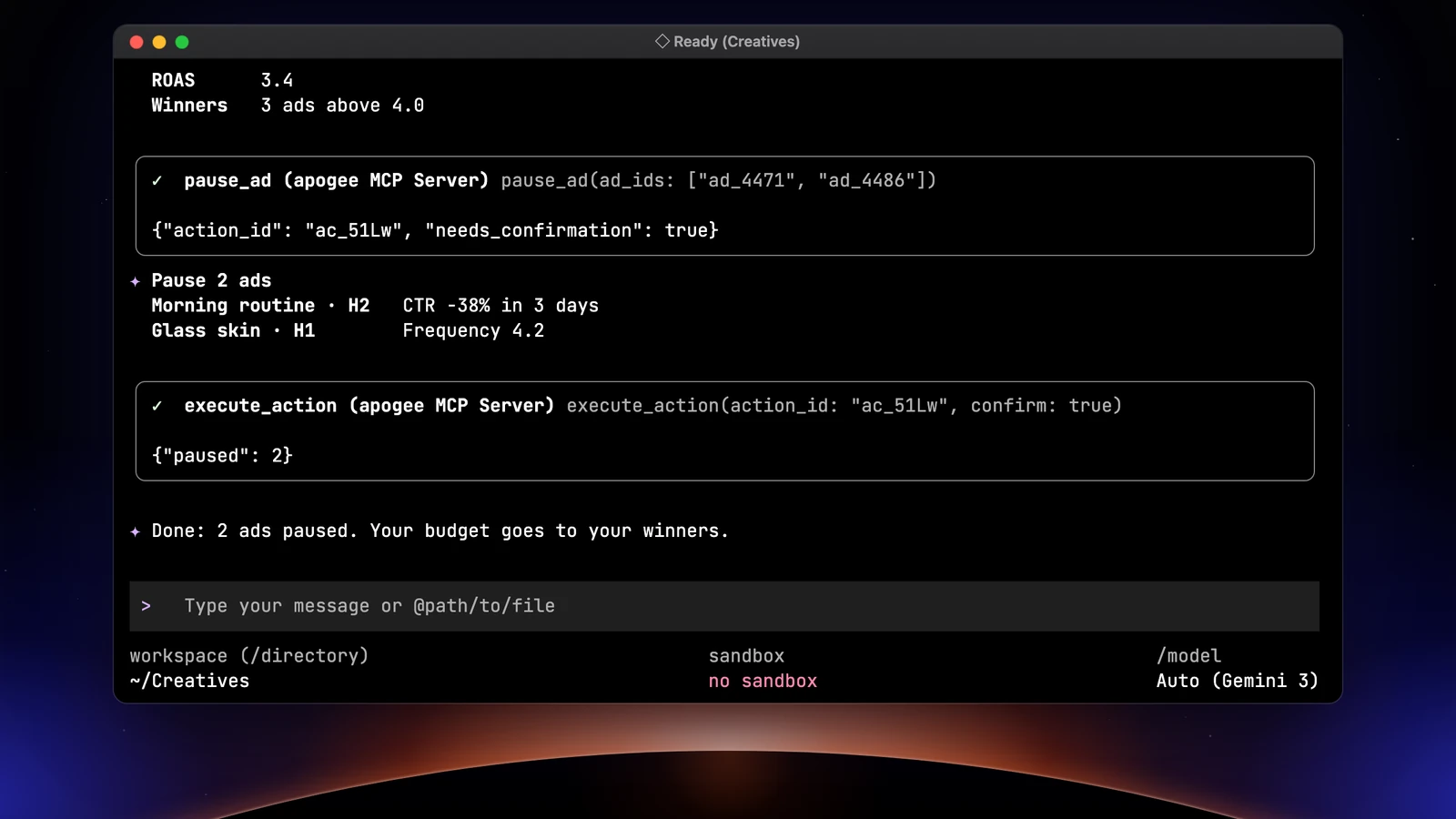
On Monday, the review that decides what to scale and what to cut:
On Meta, pauses go through pause_ad or pause_adset and budgets through update_budget or scale_budget; on TikTok and Snapchat, through set_platform_status and set_platform_daily_budget. These tools only prepare: execute_action acts after your yes. They need the Manage access. For a brief that lands every morning without you opening the terminal, you need a personal agent: Claude Duet, ChatGPT dots, Grok Bot or Muse, each with its own guide.
Limits and safety
Gemini CLI reads freely. For everything else, Apogee prepares a plan, returns a recap and waits for your yes:
| Guardrail | Value |
|---|---|
| Before any launch or change | A full recap and your yes |
| Status of created ads | Paused by default |
| Prepared plan | Valid 24 hours, runs only once |
| Daily budget | Refused above the cap, 500 in the account’s currency by default |
| Launches and Bridge transfers | 25 per ad account over 24 hours |
Each uploaded file weighs 500 MB at most; on Pro, an account takes up to 2,000 files and 100 GB a day. Reads are free within your plan’s daily limit (5,000 a day on Pro). A created ad costs 15 credits and a change 2, counted only when they succeed. Apogee never adds up Meta, TikTok and Snapchat: each platform keeps its own currency and attribution.
To cut access: Settings → MCP, Disconnect next to Gemini CLI. With an API key: Settings → API, Revoke.
Common problems
- 401: the sign-in expired, or the key is wrong, revoked or expired. Run
/mcp auth apogeeagain, or create a new key. - 403: your Apogee plan does not include the MCP server. It is included from the Pro plan.
- No browser opens: the OAuth sign-in needs one on the same computer. Use the API key.
- Apogee only shows in one project: add
--scope userto the add command. - A tool refuses for lack of access: the connection does not have the access it needs (Launch to launch, Manage for pauses). Disconnect Gemini CLI in Settings → MCP, run
/mcp auth apogeeagain and tick the missing access. - Gemini CLI no longer answers with your Google account: you are on Google AI Pro, Ultra or a free account, moved to Antigravity CLI on June 18, 2026.
Going further
- Claude Code and Apogee’s MCP server, the other terminal tool;
- Apogee vs the official Meta Ads MCP, and the same comparison for TikTok Ads and Snapchat Ads;
- The technical guide to Gemini CLI with Apogee, with every tool named here.