More articles 10 min read
Devin Desktop (ex-Windsurf) MCP: connect Apogee
Devin MCP setup: connect Apogee to Devin Desktop (ex-Windsurf) with an API key in mcp_config.json, then launch Meta, TikTok and Snapchat ads after your yes.

Contents
Devin MCP, in short: Devin Desktop, formerly Windsurf, connects to Apogee’s MCP server with an API key. You create the key in Apogee, add the server https://app.apogee.ad/mcp with that key to ~/.config/devin/mcp_config.json, then turn it on. Devin Desktop then reads your Meta, TikTok and Snapchat accounts, launches the creatives in your folders and prepares pauses and budgets, always after your yes. You need Apogee from the Pro plan and, on Teams or Enterprise, an admin’s approval.
Before you start: API key, plans and admin
Apogee accepts two ways to connect to its MCP server: OAuth, on Apogee’s page, and an API key (apk_…) sent in the Authorization header. For OAuth, Apogee only accepts returns to the assistants in its guide and to your own computer. Devin Desktop can sign in with OAuth, but does not document where its sign-in returns, so Apogee’s guide recommends the API key.
| Point | Devin Desktop |
|---|---|
| Sign-in | Apogee API key, in a config file |
| File | ~/.config/devin/mcp_ (%APPDATA%\devin\mcp_ on Windows) |
| Teams and Enterprise plans | An admin allows MCP servers in the team settings, and may limit them to an allowlist |
| Apogee | Pro, Growth or Scale, MCP server included; 7-day trial for €1 |
So there is no authorization page: you pick the access when you create the key. Devin Desktop is only one way in: our overview of Meta Ads MCP servers reviews the other assistants and servers.
Devin MCP: add Apogee in three steps
These are the steps from Apogee’s guide, read again on November 3, 2026 against Devin Desktop’s MCP documentation and its configuration page.
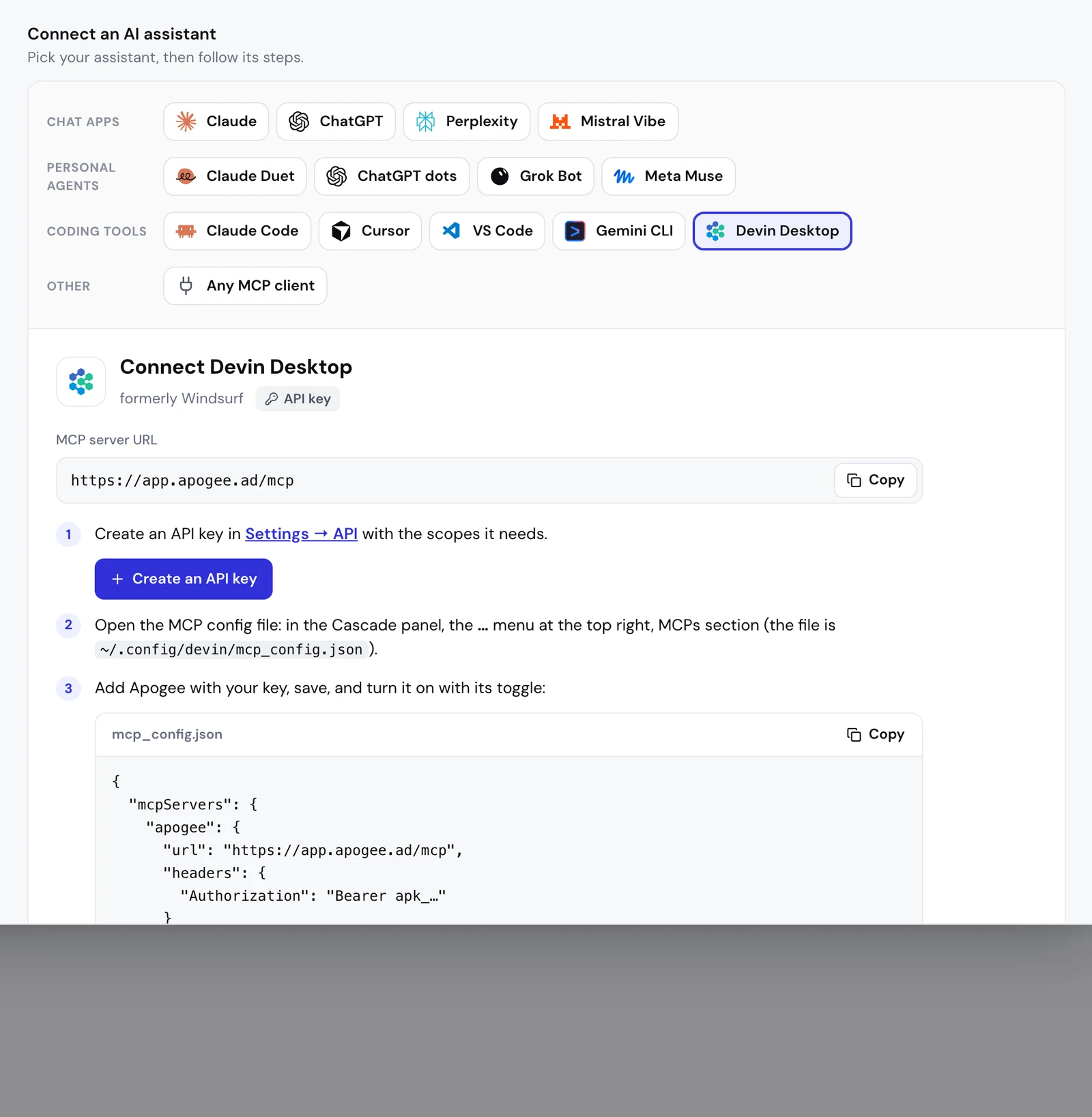
1. Create the API key in Apogee
- Open Settings → API and click Create an API key.
- Name: a name you will recognize, for instance “Devin Desktop”.
- Scopes: tick only what Devin needs. Read is ticked by default.
- Expires: 30 days, 90 days (default), 1 year, or a date up to a year out. Every key has an end.
- Click Create key, copy the key right away (Apogee shows it only once), then I saved it.
| Access | What it lets Devin Desktop do |
|---|---|
| Read | Read ad accounts, campaigns, ad sets, ads and statistics, follow imports and launches |
| Launch | Import and upload creatives, prepare and launch ads, Bridge transfers, create a campaign |
| Actions | Pause, activate, budgets, targeting, duplicates, ad sets and ads from existing posts |
One key per assistant: if one leaks, you revoke it without touching the others. An account has at most 10 active keys.
2. Open mcp_config.json
According to Apogee’s guide, the file opens from the Cascade panel, the … menu at the top right, MCPs section. If your version no longer shows that menu, Devin’s documentation goes through Customize, MCPs tab, with Install MCPs for set to This computer: the list lets you open the file and turn each server on.
3. Add Apogee with the key
{
  "mcpServers": {
    "apogee": {
      "url": "https://app.apogee.ad/mcp",
      "headers": {
        "Authorization": "Bearer apk_…"
      }
    }
  }
}
Replace apk_… with your key, save the file and turn Apogee on with its toggle. If the file already holds other servers, only add the "apogee" block inside "mcpServers", without deleting the rest.
Keep the key in this user file. The project file .devin/mcp_config.json is versioned with the repository and shared with the team: a key does not belong there.
Check the connection
With a key, Devin Desktop does not show in Apogee’s Connected assistants list, which is for OAuth connections. The key itself shows when it was last used under Settings → API, API keys list. The simplest check is to ask:
Devin calls whoami, which returns the account, the credential type (here an API key) and its access, then list_ad_accounts. By default, Devin Desktop asks for your approval before it calls an MCP tool: accept these two reads.
Devin Desktop on Meta Ads: decide every ad and every ad set
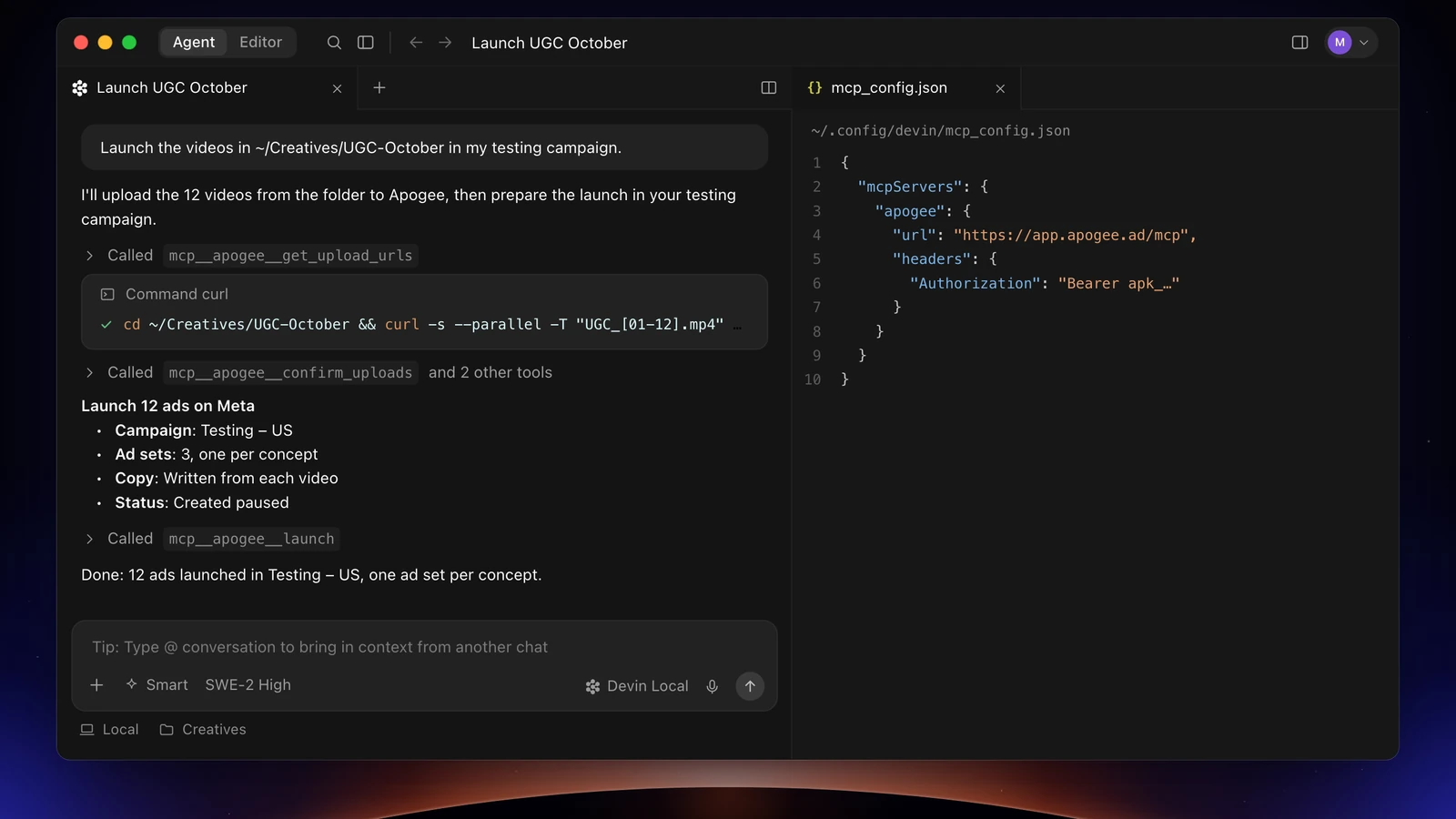
Devin Desktop works on your files: it can upload the creatives in a local folder, and you keep control of the split.
What Devin does, with Apogee’s tools:
- The account:
list_ad_accounts, and it asks which one when there are several. - The upload:
get_upload_urlsgives one signed link per file (50 files per call, 500 MB at most each, link valid for one hour), Devin uploads each file, thenconfirm_uploadschecks it arrived. Nothing is on Meta yet. - The pairs: it shows the ads it built, each creative’s 4:5 and 9:16 together. Confirm or correct them.
- The split: each ad goes into exactly one new ad set, as requested.
- The interview:
get_launch_questionsreturns the Apogee app’s questions still open (ad set settings, identity, audience, tracking, destination, texts, Advantage+), one topic at a time, without answering for you. - The recap, then the launch:
prepare_launchcreates nothing. After your yes,launch, thenlaunch_statusuntil it is done.
Before you say yes, check the file pairs, each ad set’s content and budget, the texts and their language, the Advantage+ enhancements picked (the others stay off) and the defaults applied. If Meta rejects an ad, launch_status explains why and what to fix; Devin does not relaunch until you have sorted the cause.
Everything in one ad set
Here your naming convention builds the ads: the 9:16, 4:5 and 1:1 files of one creative become a single ad.
Devin Desktop on TikTok Ads and Snapchat Ads
Send Meta winners over with the Bridge
A video that works on Meta can go to TikTok and Snapchat with no export: Apogee’s Bridge creates paused copies, with adapted texts, and the Meta ad stays put:
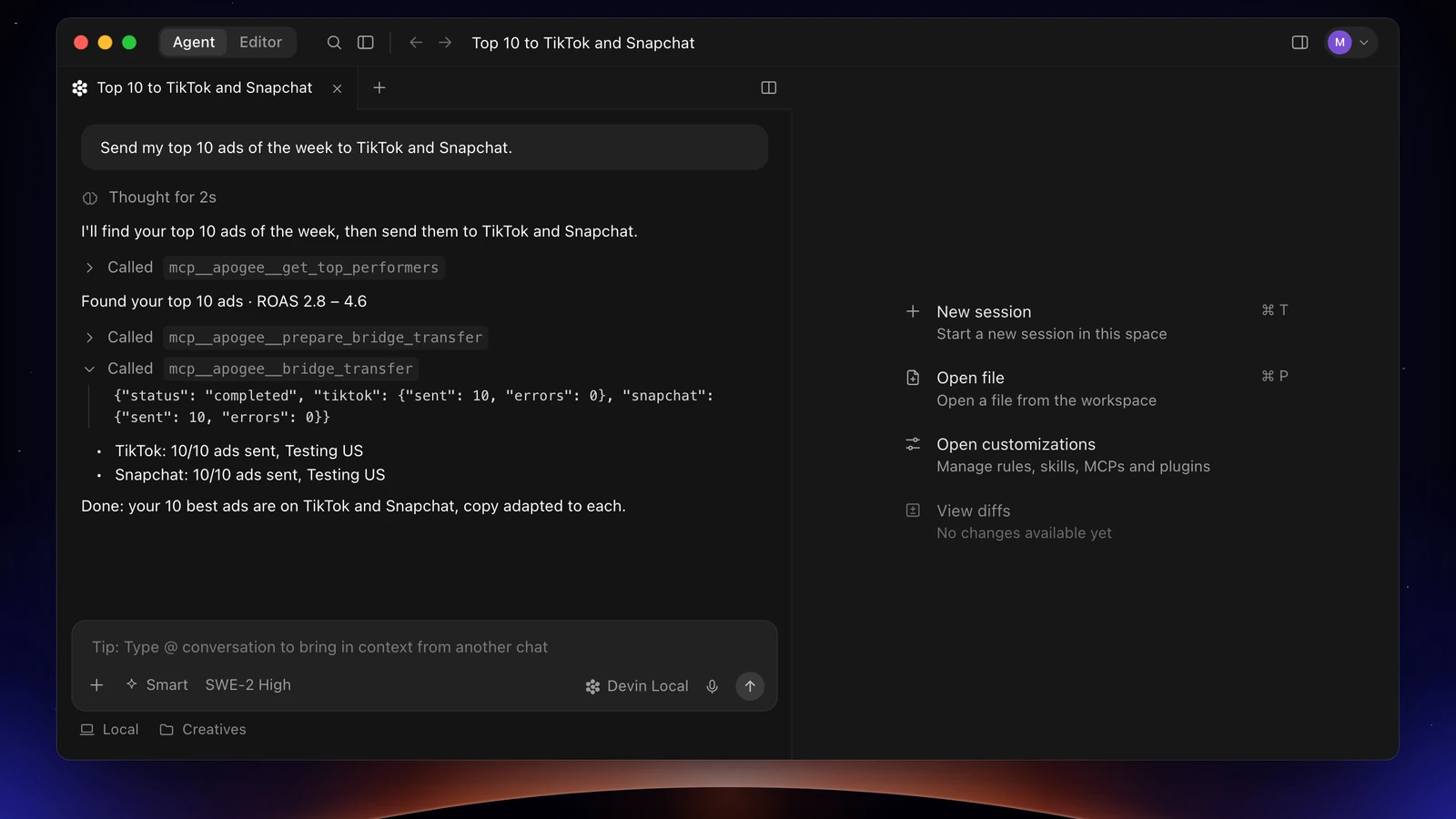
Devin relies on get_top_performers and list_bridge_transfers, then on prepare_bridge_transfer and bridge_transfer after your yes. The key needs Read and Launch. Only videos go through the Bridge.
One campaign on all three platforms at once
Devin asks what each platform requires: on Meta the objective, the pixel, the Page and the Instagram account; on TikTok the identity and whether to use Smart+; on Snapchat the public profile, the pixel and the countries. TikTok creates an ad group, Snapchat an ad squad, and each platform waits for its own yes. The details are on the Meta, TikTok and Snapchat in Apogee page.
The weekly report, platform by platform
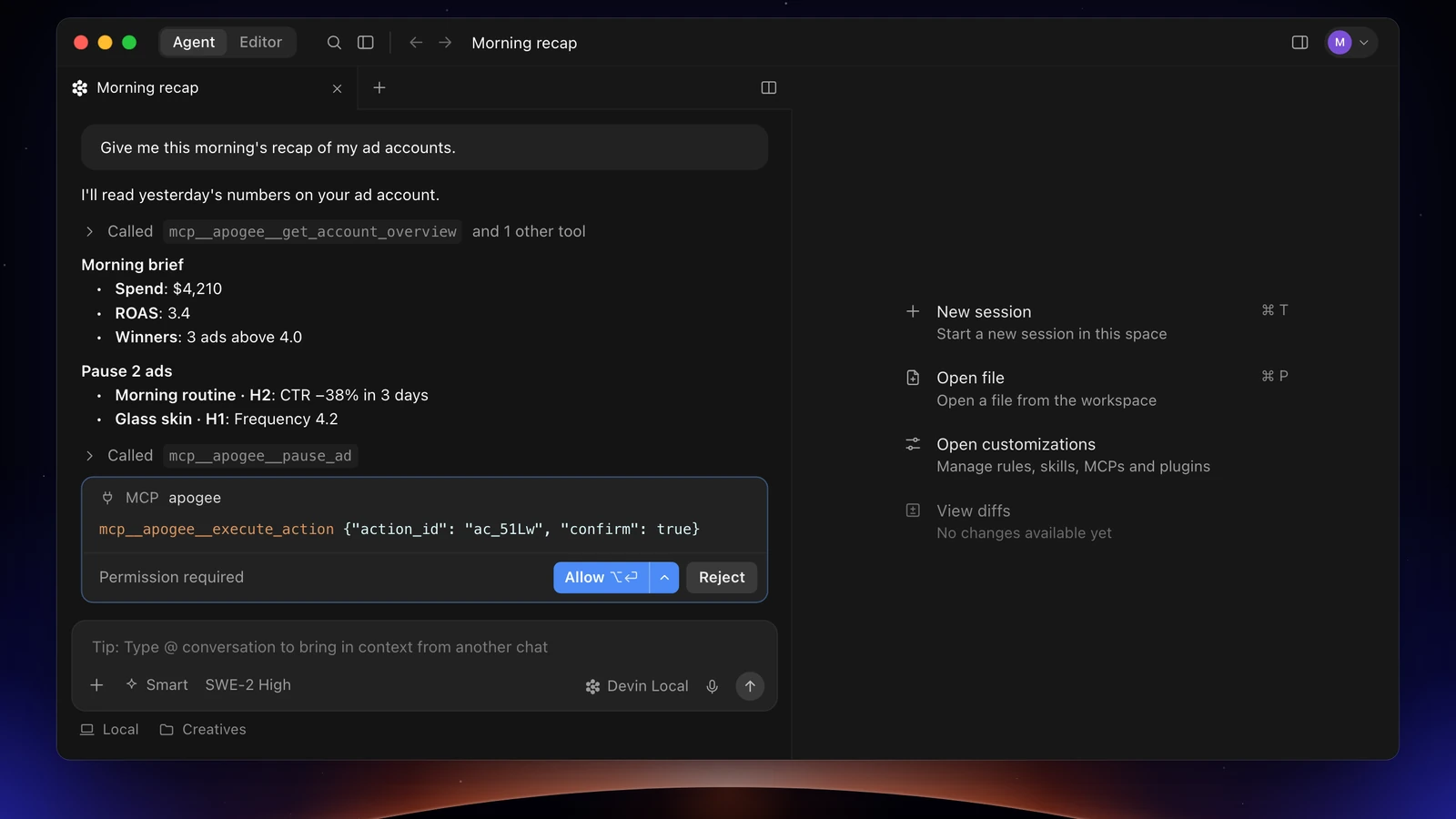
To apply the pauses or budgets it proposes, the key needs Actions: the tools prepare, then execute_action acts after your yes.
Limits and safety
Two checks add up. Devin Desktop asks for your approval before it calls an MCP tool, unless you allowed a tool or a whole server; do not allow all of Apogee at once. And Apogee keeps its own guardrails:
| Guardrail | Value |
|---|---|
| Before any launch or change | A full recap and your yes |
| Status of created ads | Paused by default |
| Prepared plan | Valid 24 hours, runs only once |
| Daily budget | Refused above the cap, 500 in the account’s currency by default |
| Launches and Bridge transfers | 25 per ad account over 24 hours |
Reads are free within your plan’s daily limit; a created ad costs 15 credits and a change 2, only when they succeed. To cut access: Settings → API, API keys list, Revoke next to Devin’s key, then remove the apogee entry from mcp_config.json.
Common problems
- 401: the key is wrong, revoked or expired. Regenerate in Settings → API gives a new key with the same name and access and stops the old one: paste the new one into
mcp_config.json. - 403: your Apogee plan does not include the MCP server. It is included from the Pro plan.
- A tool refuses for lack of access: the key does not have the access it needs. Create one with the right access, swap it in the file, then revoke the old one.
- The server does not show in a team: on Teams and Enterprise, the admin has to allow MCP servers; if they limit them to an allowlist, Apogee must be on it.
- Apogee does not show at all: check that the JSON is valid (commas, braces), that the file is saved and that Apogee’s toggle is on.
- You cannot create a key: you already have 10 active keys. Revoke one.
Going further
- Gemini CLI and Apogee’s MCP server, and Cursor with Apogee, which also connects with a key;
- Apogee vs the official Meta Ads MCP, and the same comparison for TikTok Ads and Snapchat Ads;
- The technical guide to Devin Desktop with Apogee, with every tool named here.