More articles 11 min read
VS Code MCP server: connect Apogee to GitHub Copilot for ads
VS Code MCP setup: add Apogee to GitHub Copilot agent mode with MCP: Add Server, then launch and run your Meta, TikTok and Snapchat ads from the editor.

Contents
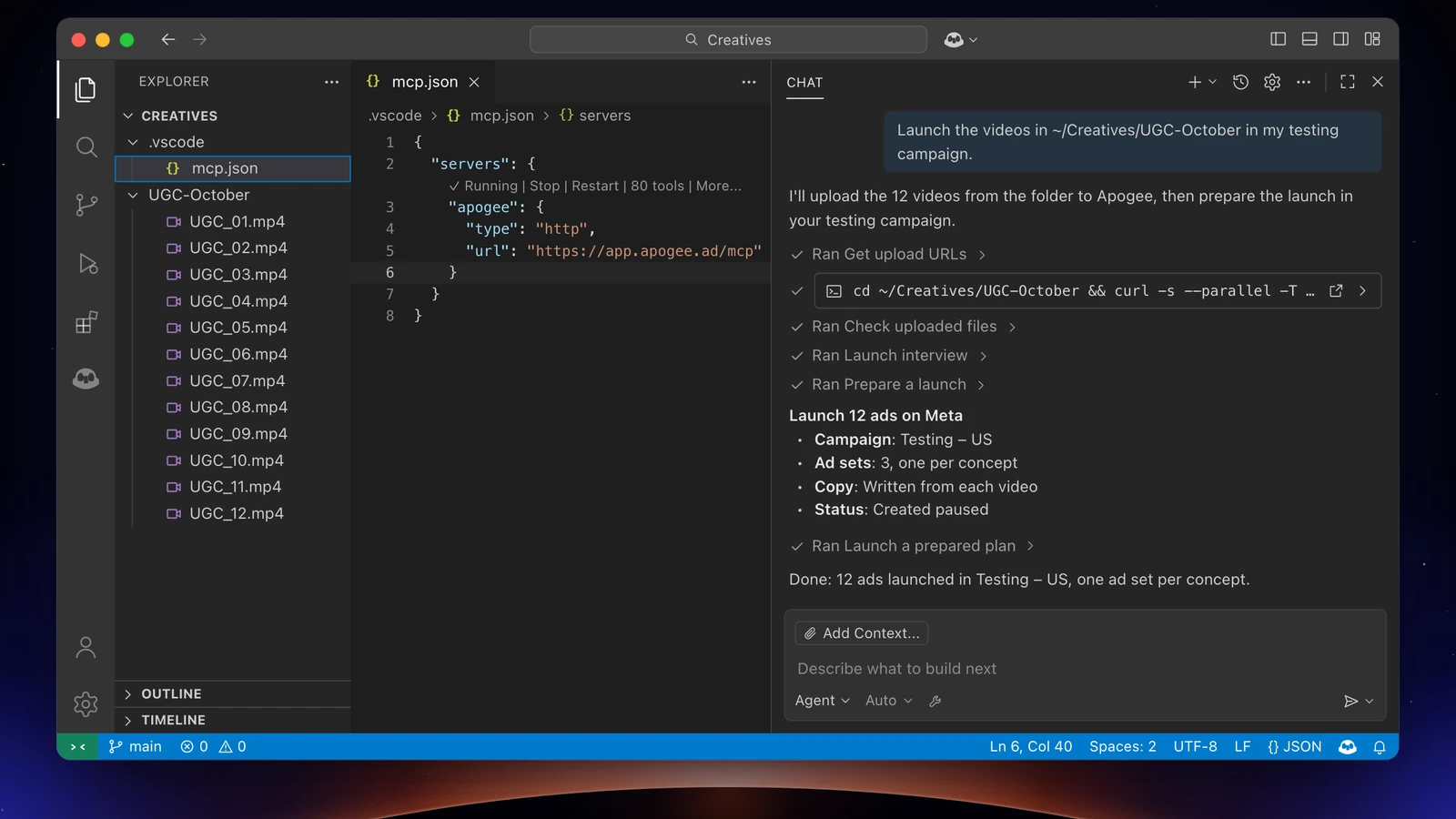
VS Code MCP runs through GitHub Copilot: in agent mode, Copilot picks up Apogee’s tools and becomes a media buyer inside your editor. It reads your Meta, TikTok and Snapchat accounts, launches the creatives of a folder on your computer, sends your Meta winners to TikTok and Snapchat and prepares the morning recap. It prepares, you approve. Two requirements: an Apogee plan that includes the MCP server, from Pro up, and, on Copilot Business or Enterprise, the MCP policy turned on by an admin.
Before you start
| Side | What you need |
|---|---|
| VS Code | GitHub Copilot, used in Agent mode |
| Copilot Free, Pro, Pro+, Max | Nothing to turn on |
| Copilot Business, Enterprise | An admin turns on the MCP servers in Copilot policy, off by default |
| Apogee | A plan that includes the MCP server: Pro, Growth or Scale, 7-day trial for €1; Starter does not have it |
| Sign-in | Apogee’s consent page (OAuth); an API key as an option |
| Ad accounts | Your Meta, TikTok or Snapchat accounts, already connected to Apogee |
The MCP servers in Copilot policy is described in GitHub’s docs on MCP in Copilot. Apogee’s server speaks HTTP (the MCP protocol’s “Streamable HTTP” transport): that is why you pick HTTP when you add it. To compare Apogee with the other MCP servers that run Meta Ads, see our guide to Meta Ads MCP servers.
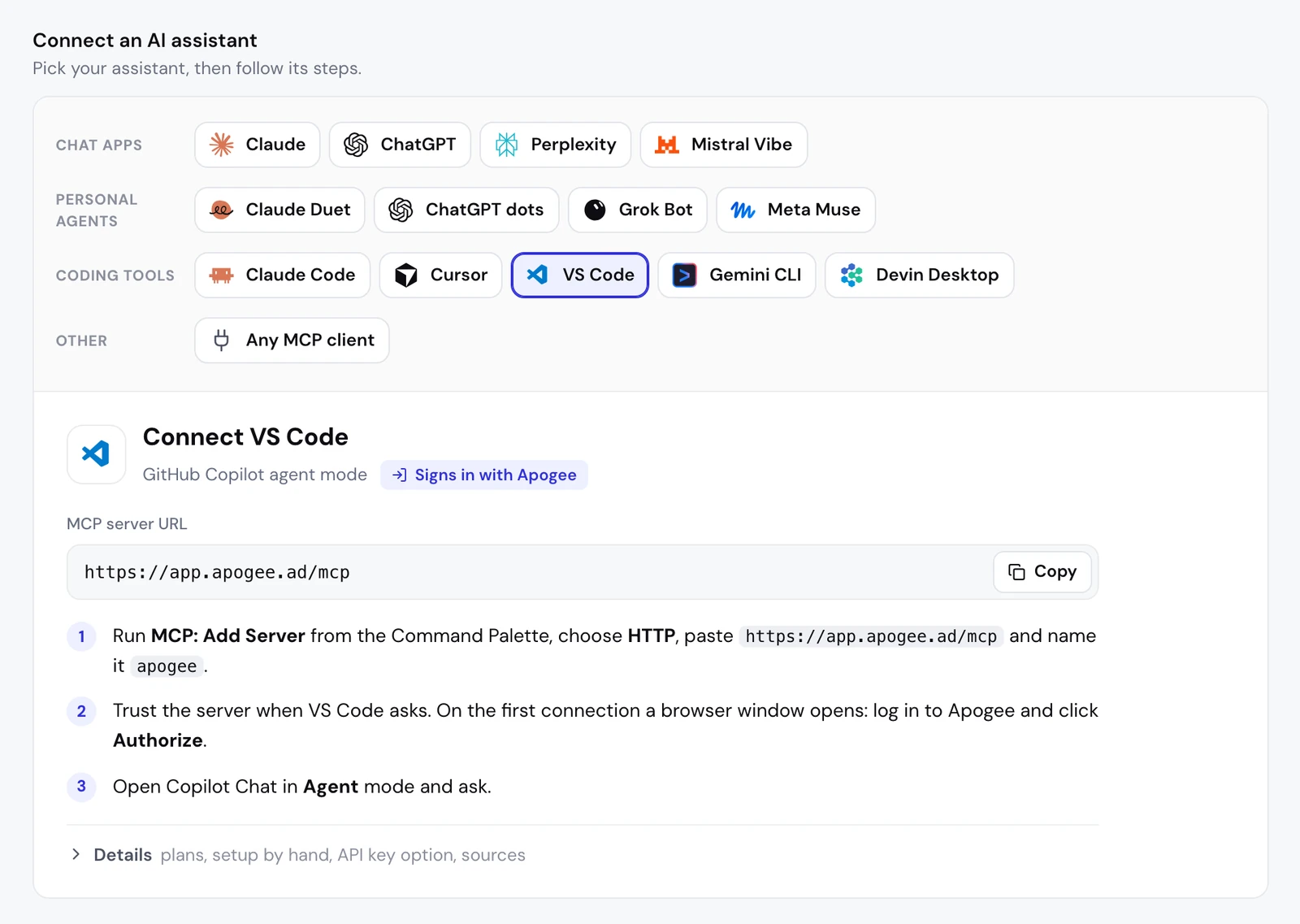
VS Code MCP server setup: add Apogee
- Open VS Code’s Command Palette and run MCP: Add Server.
- Choose HTTP (labeled “HTTP (HTTP or Server-Sent Events)” in recent versions).
- Paste
https://app.apogee.ad/mcp. - Name the server
apogee. - If VS Code asks where to save it, the global destination keeps it for all your projects.
- Trust the server when VS Code asks.
- On the first connection a browser window opens: log in to Apogee, check the access and click Authorize.
- Open Copilot Chat, switch to Agent mode and ask.
Writing the configuration by hand
Apogee’s guide also gives this configuration for .vscode/mcp.json:
{
  "servers": {
    "apogee": {
      "type": "http",
      "url": "https://app.apogee.ad/mcp"
    }
  }
}
The file holds no secret: the sign-in always goes through Apogee’s page. If it ends up in a shared Git repository, each person signs in with their own Apogee account. According to VS Code’s documentation, read on November 3, 2026, the guided flow now offers a global Copilot configuration and keeps .vscode/mcp.json for compatibility.
With an Apogee API key
OAuth is enough in most cases. For a key, create it under Settings → API, ticking only the scopes you need (Read, Launch, Actions), then declare it like this:
{
  "inputs": [
    {
      "type": "promptString",
      "id": "apogee-key",
      "description": "Apogee API key",
      "password": true
    }
  ],
  "servers": {
    "apogee": {
      "type": "http",
      "url": "https://app.apogee.ad/mcp",
      "headers": {
        "Authorization": "Bearer ${input:apogee-key}"
      }
    }
  }
}
VS Code asks for the apk_… key once, masks it as you type and stores it: it is never written in the file. Apogee shows the key only once, when you create it, and every key has an expiry.
Apogee’s consent page
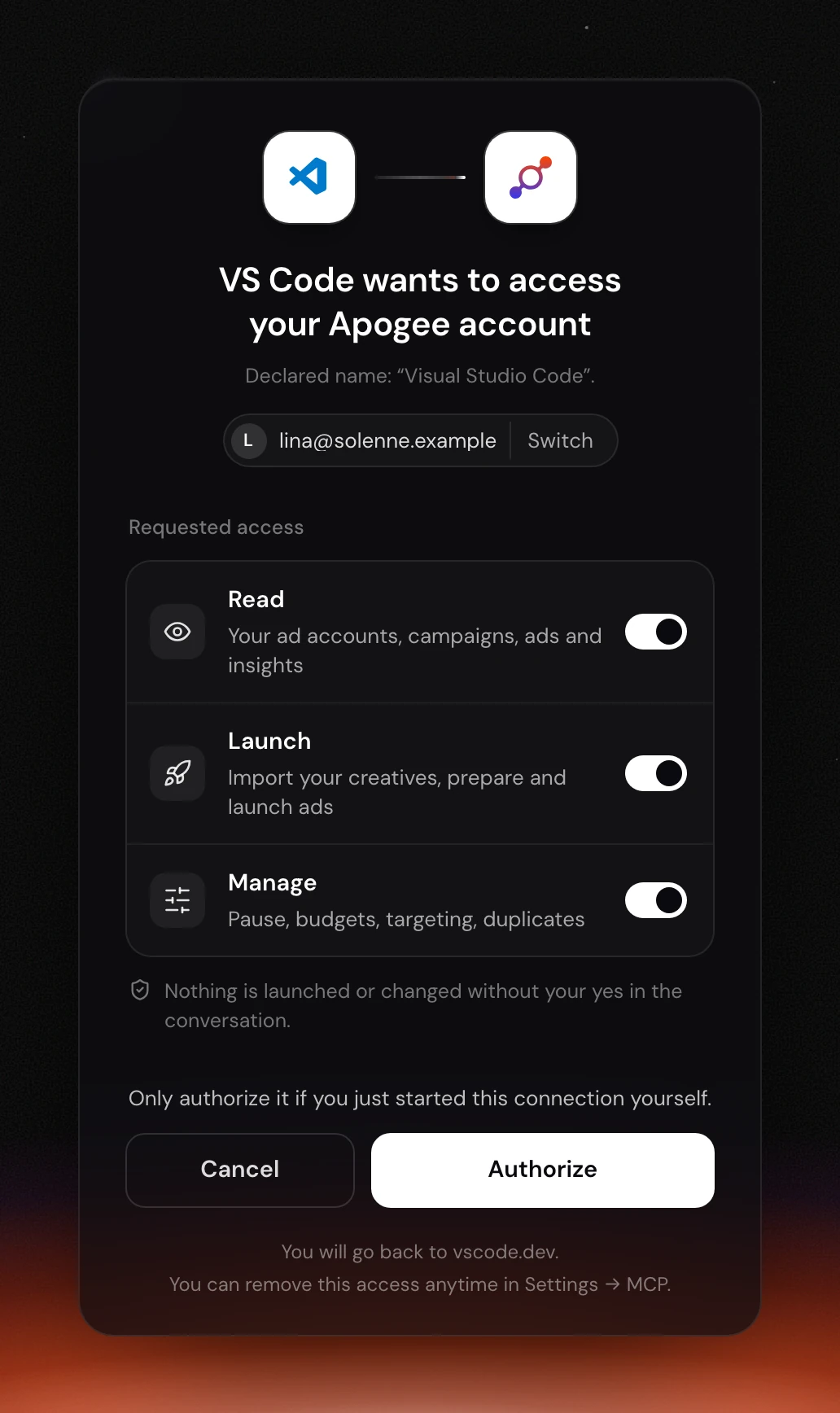
When VS Code opens the browser, the page reads “VS Code wants to access your Apogee account”, with the name the app declares, “Visual Studio Code”, and the Apogee account in use (Switch to change it).
| Access | What it allows | For which task |
|---|---|---|
| Read | Read your accounts, campaigns, ads and stats | The morning recap, the weekly review |
| Launch | Import creatives, prepare and launch ads | Launches, the Bridge |
| Manage | Pauses, budgets, targeting, duplicates | Cutting an ad, adjusting a budget |
Untick whatever Copilot doesn’t need, keeping at least one. The page reminds you that nothing is launched or changed without your yes in the conversation, then offers Cancel or Authorize, with the return to vscode.dev.
Check the connection
In Agent mode, a first request with no risk:
Copilot calls whoami, then list_ad_accounts: two reads. Expand the tool call in the conversation to check it came from the apogee server. Approve only the tool requests you understand.
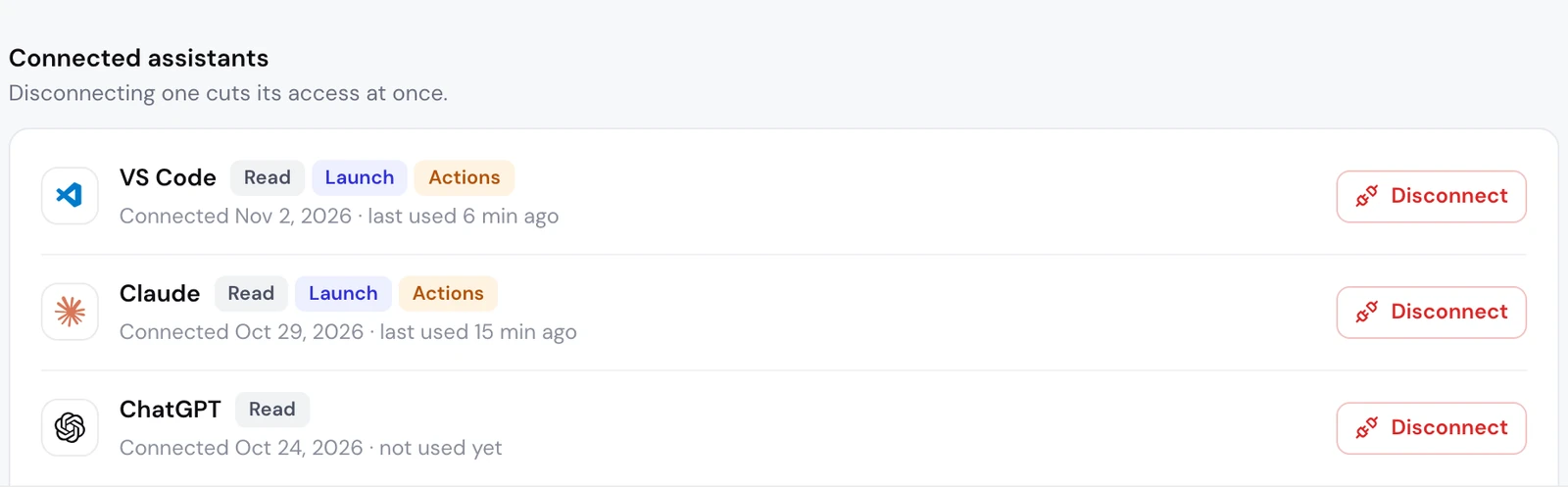
In Apogee, Settings → MCP then lists VS Code under Connected assistants, with its access (Manage becomes Actions there), its connection date and its last use.
What to ask Copilot next: the media buyer’s job
In agent mode, Copilot runs commands on your computer: it reads the folder your video editor drops the exports into and uploads it to Apogee itself, which chat apps on the web cannot do.
Launch a folder from your computer on Meta Ads
- The account:
list_ad_accounts, and the account question if you have several. - The starting point:
get_latest_in_campaignpicks up the latest ad set (audience, event, bid, budget) and the latest ad (Page, Instagram, URL, call to action, texts). - The upload:
get_upload_urlsgives one signed URL per file, Copilot uploads each file with an HTTPPUT, thenconfirm_uploadschecks it arrived and is not empty. Nothing has gone to Meta. - The ads:
get_launch_questionsreads your file names with your naming convention; the 9:16, 4:5 and 1:1 versions of a creative make one ad. Copilot asks the questions one topic at a time. - The recap, then the launch:
prepare_launchcreates nothing. After your yes,launch, thenlaunch_statusuntil it is done.
Uploads go in batches of 50 files, 500 MB per file at most, each URL valid for one hour. Per day, an Apogee account takes up to 2,000 files and 100 GB on Pro, twice that on Growth and Scale.
The same folder on TikTok Ads and Snapchat Ads
Copilot follows the same flow on the platform you name: an ad group on TikTok, where an image runs as a carousel, or an ad squad on Snapchat. With a template saved in the app (Quick Bulk Edit, then Save as template):
Without a template, Copilot asks each platform’s questions: the identity and Smart+ on TikTok; the public profile, the pixel and the countries on Snapchat. Each platform has its own recap, budget and currency, and waits for its own yes.
Send Meta winners to TikTok and Snapchat
Apogee’s Bridge creates paused copies of your best Meta ads, without touching the originals:
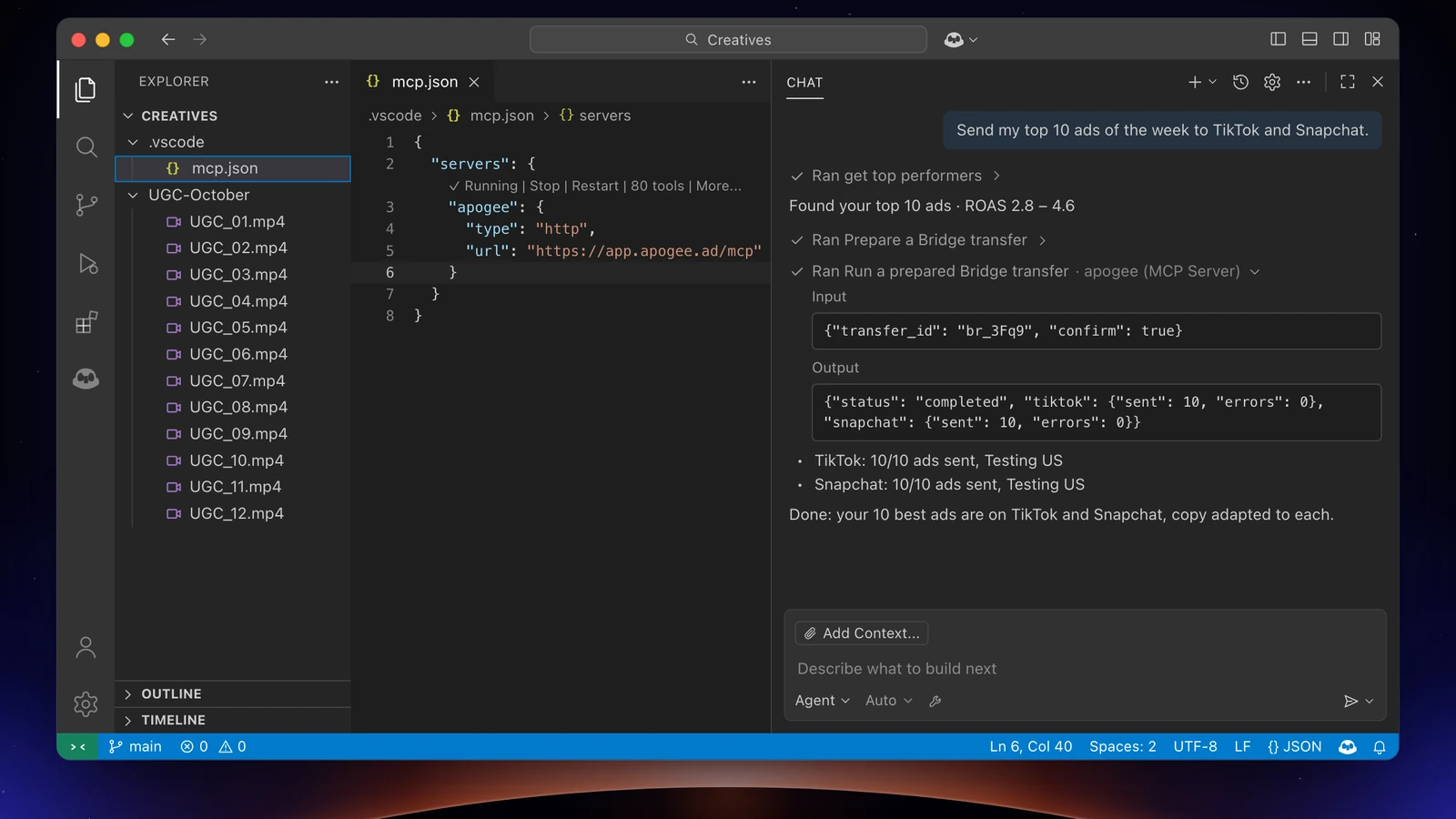
Expand the tool calls to follow the transfer: get_top_performers picks the ads, list_bridge_transfers removes those already sent, prepare_bridge_transfer returns the recap, and bridge_transfer waits for your yes. On the first transfer, Copilot asks for the TikTok identity and the call to action, which Meta lacks. An image ad stays on Meta: only videos go through.
The morning recap
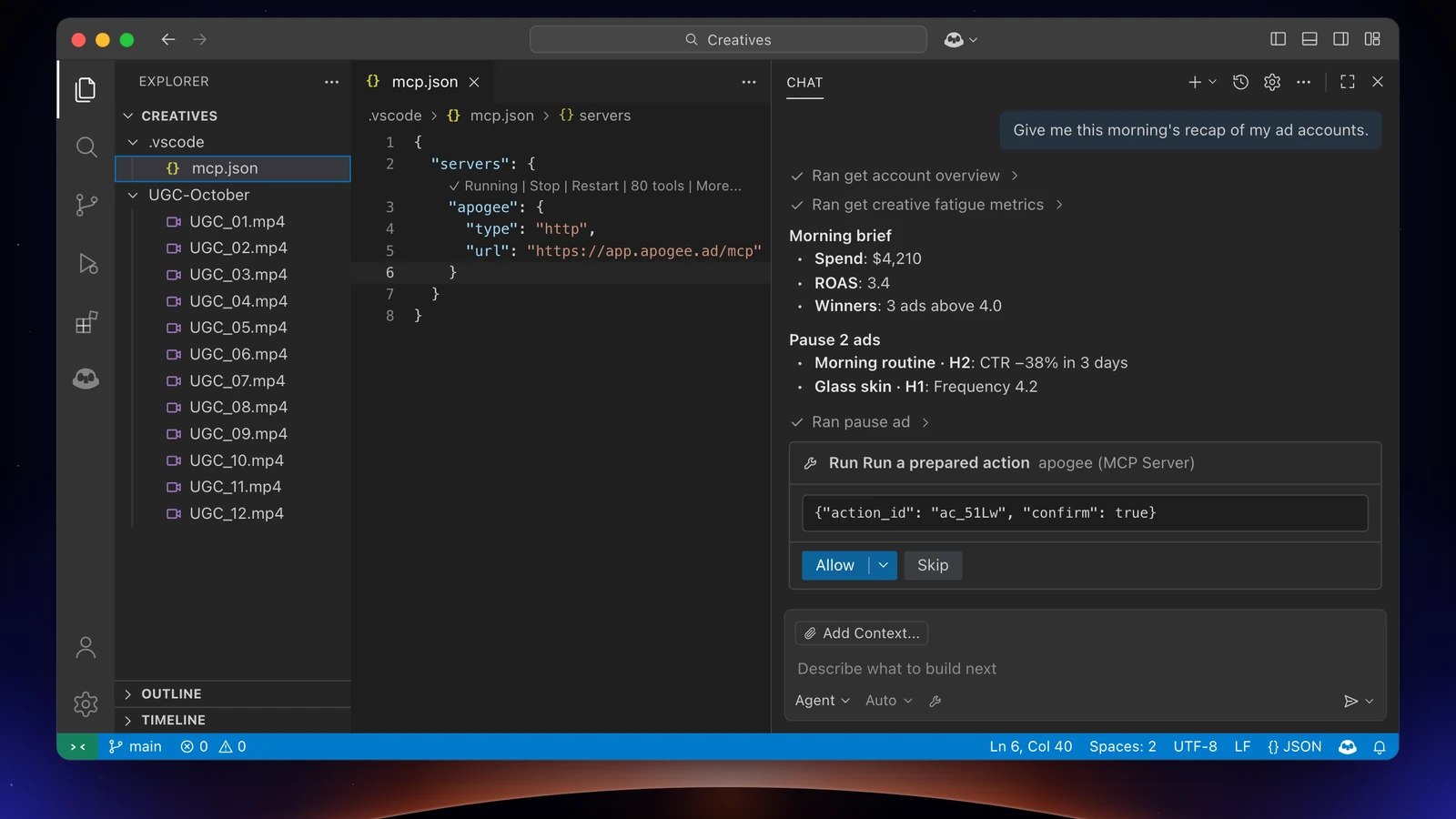
Copilot reads Meta with get_account_overview and get_top_performers, TikTok and Snapchat with get_platform_overview and get_platform_top_performers; these reads stay free within your plan’s daily limit (5,000 a day on Pro). The numbers come from Apogee’s cross-platform stats.
Cut the ads that are fatiguing
Copilot reads get_creative_fatigue_metrics and the results, then prepares the pauses: pause_ad on Meta, set_platform_status on TikTok. Your yes triggers execute_action. This needs the Manage access; each change that runs uses 2 credits, and each ad created 15, only when it succeeds.
Limits and safety
On Copilot’s side. On Business and Enterprise, nothing works while the MCP servers in Copilot policy is off. VS Code puts the server’s startup, the sign-in and tool calls in front of you: never approve launch, execute_action or bridge_transfer on autopilot.
On Apogee’s side, whatever VS Code’s settings:
| Guardrail | Value |
|---|---|
| Before any launch or change | A full recap and your yes |
| Status of created ads | Paused by default |
| Prepared plan | Valid 24 hours, runs only once |
| Daily budget | Refused above the cap, 500 in the account’s currency by default |
| Launches and Bridge transfers | 25 per ad account over 24 hours |
Through Apogee, two things stay out of Copilot’s reach: creating a catalog or an audience, and adding up Meta, TikTok and Snapchat. To cut access: Settings → MCP, Disconnect next to VS Code; with a key, Revoke under Settings → API, API keys list. Then remove the apogee entry from your VS Code configuration. Ads already launched stay in place.
Common problems
- The server does not show up in Copilot Business or Enterprise: the MCP servers in Copilot policy is off by default. Ask your admin to turn it on.
- Apogee’s tools don’t answer: check that you trusted the server and that Copilot Chat is in Agent mode.
- 401: the sign-in did not complete, or the key is unknown, revoked or expired; Apogee answers the same 401 in every case. Restart the sign-in from VS Code, or regenerate the key.
- 403 upgrade_required: your Apogee plan does not include the MCP server (Starter). Move to Pro, Growth or Scale.
- 403 insufficient_scope, or a tool is missing: the access was unticked on the consent page. Disconnect VS Code in Apogee, then restart the sign-in from VS Code and tick the access you need.
- Expired connection: the OAuth connection relies on a one-hour token, renewed by a token valid 60 days. If Apogee still refuses, restart the sign-in from VS Code.
- 402 credits_exhausted: this month’s credits are used. Reads keep working; the rest resumes on the 1st of the month or with a credit pack.
Going further
- the other coding tools: Cursor, Claude Code, Gemini CLI and Devin Desktop;
- Apogee vs the official Meta Ads MCP, and the same comparison for TikTok Ads and Snapchat Ads;
- the technical docs for VS Code with Apogee, with every tool named here.